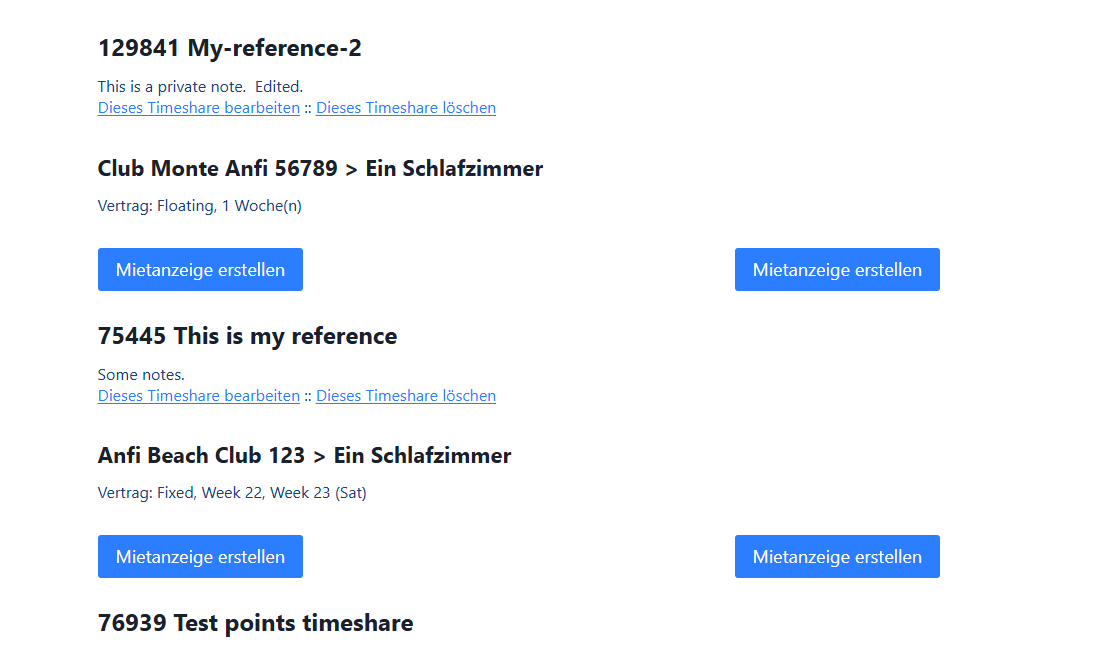
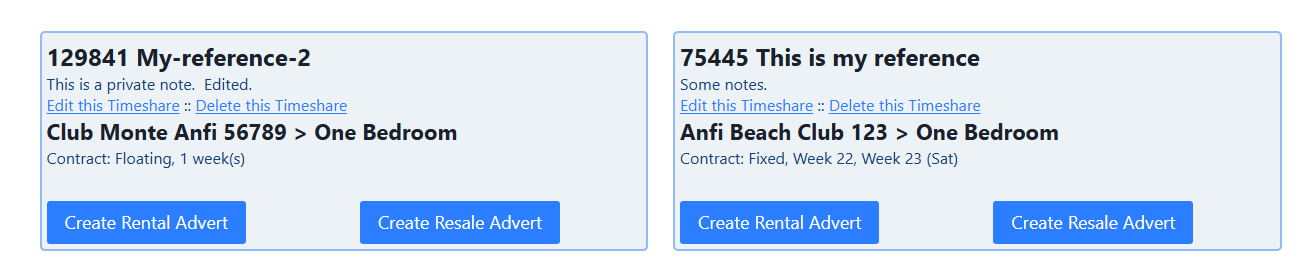
Hello,
Thank you for the access.
I found the cause of the problem on the "My Timeshares" page and fixed it on your staging site. I also need to correct part of my earlier advice, and I am sorry for the confusion.
The English "My Timeshares" page contained the German texts of the View, such as "Dieses Timeshare bearbeiten" and "Vertrag". Because of this, members on the English page saw German links and labels.
The page was set to be translated in the WordPress Editor. The View on this page is shared by the English and German pages, so German texts can end up in the English page this way. Pages built with Toolset blocks should be translated with WPML's Translation Editor instead.
This is what I did on your staging site:
1. I restored the English page to its last version with English texts, from 8 October 2026, and updated it.
2. I switched the page's translation method to WPML's Translation Editor, for this page only.
3. WPML then updated the German translation. It kept your German texts and rebuilt the German layout to match the English page.
Now the English page shows "Edit this Timeshare" and "Contract", and the German page shows "Dieses Timeshare bearbeiten" and "Vertrag". Both pages have the same column layout.
Please check the staging site. When you are happy with it, please follow the steps below on your live site.
First, make a full backup of the live site, and update WPML and Toolset.
To update WPML:
1. Log in to your account on wpml.org and open the Downloads page.
2. Download WPML Multilingual CMS, String Translation and WPML Multilingual & Multicurrency for WooCommerce.
3. In WordPress, go to Plugins → Add New Plugin and click "Upload Plugin".
4. Choose the WPML Multilingual CMS zip file and click "Install Now".
5. WordPress tells you the plugin is already installed. Click "Replace current with uploaded".
6. Repeat steps 3 to 5 for String Translation and for WPML Multilingual & Multicurrency for WooCommerce.
To update Toolset:
1. Log in to your account on toolset.com and open the Downloads page at https://toolset.com/account/downloads/
2. Download Toolset Types, Toolset Blocks, Toolset Forms, Toolset Forms Commerce and Toolset Access.
3. In WordPress, go to Plugins → Add New Plugin and click "Upload Plugin".
4. Choose one of the zip files, click "Install Now", then "Replace current with uploaded".
5. Repeat step 4 for each Toolset zip file.
6. Go to Plugins and check that all Toolset and WPML plugins are active and show the new versions.
Then fix the "My Timeshares" page:
1. Edit the English "My Timeshares" page and open its Revisions.
2. Find the last revision that has the English texts, such as "Edit this Timeshare". On staging, this was the revision from 8 October 2026.
3. Click "Restore This Revision".
4. Open the English page in the editor again and click "Update".
5. In the editor sidebar, find the "Language" box. Under "Translations" there are three icons. Click the middle one (the pen icon) to use WPML's Translation Editor.
6. Choose "Only this page", tick "I understand, switch to Advanced Translation Editor" and click "Apply".
7. Wait until the German translation is updated, then check both pages on the front end while logged in as a member who has timeshares.
From now on, please make layout changes only on the English page. WPML updates the German page from it. Please do not edit the German page in the WordPress Editor.
About your other questions:
The conditions compare the "timeshare type" field with values like "Fixed". Timeshares are not translated on your site, so these values are the same in both languages. You can ignore the warning about text comparisons on translated content.
Forms are not copied into separate German forms. Only their texts are translated, under WPML → Translations, where they appear as "Toolset Forms". A form keeps the same ID in all languages, so your PHP code that checks the form ID does not need to change. I said otherwise earlier, and that was not correct.
Thanks.