This is the technical support forum for Toolset - a suite of plugins for developing WordPress sites without writing PHP.
Everyone can read this forum, but only Toolset clients can post in it. Toolset support works 6 days per week, 19 hours per day.
| Sun | Mon | Tue | Wed | Thu | Fri | Sat |
|---|---|---|---|---|---|---|
| - | 10:00 – 13:00 | 10:00 – 13:00 | 10:00 – 13:00 | 10:00 – 13:00 | 10:00 – 13:00 | - |
| - | 14:00 – 18:00 | 14:00 – 18:00 | 14:00 – 18:00 | 14:00 – 18:00 | 14:00 – 18:00 | - |
Supporter timezone: Asia/Kolkata (GMT+05:30)
This topic contains 9 replies, has 1 voice.
Last updated by - 3 months, 4 weeks ago.
Assisted by: Minesh.

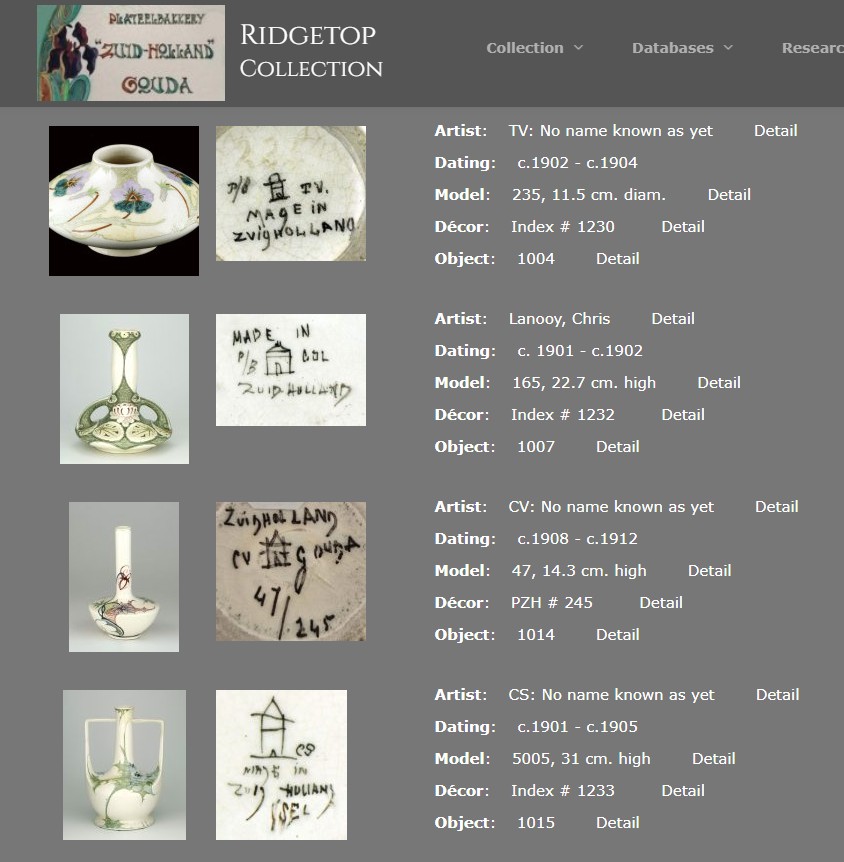
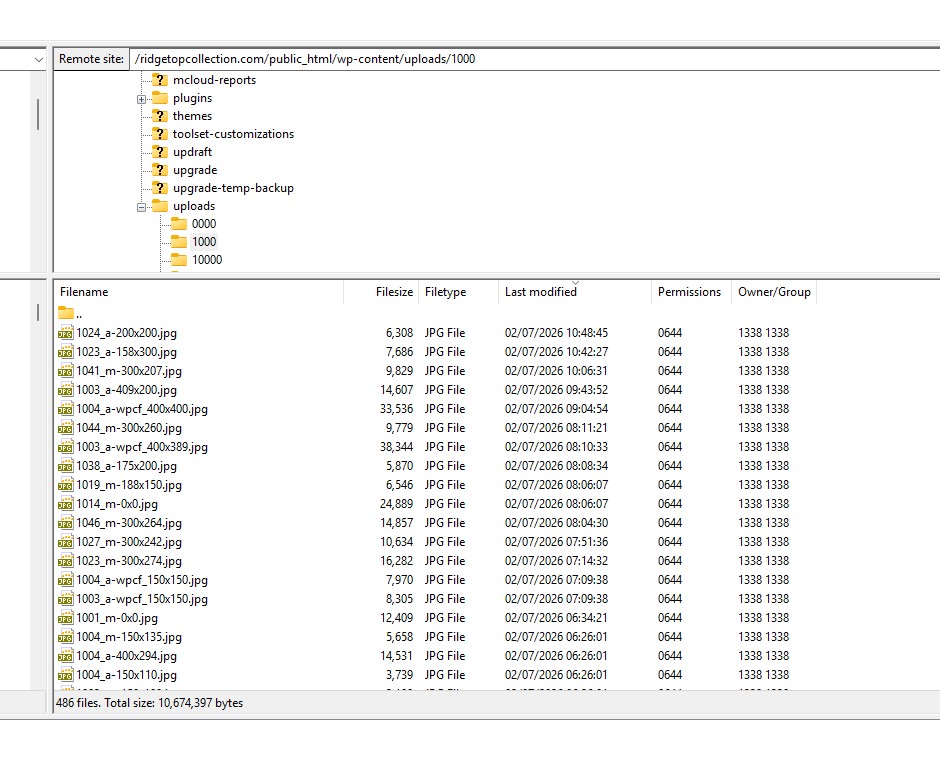
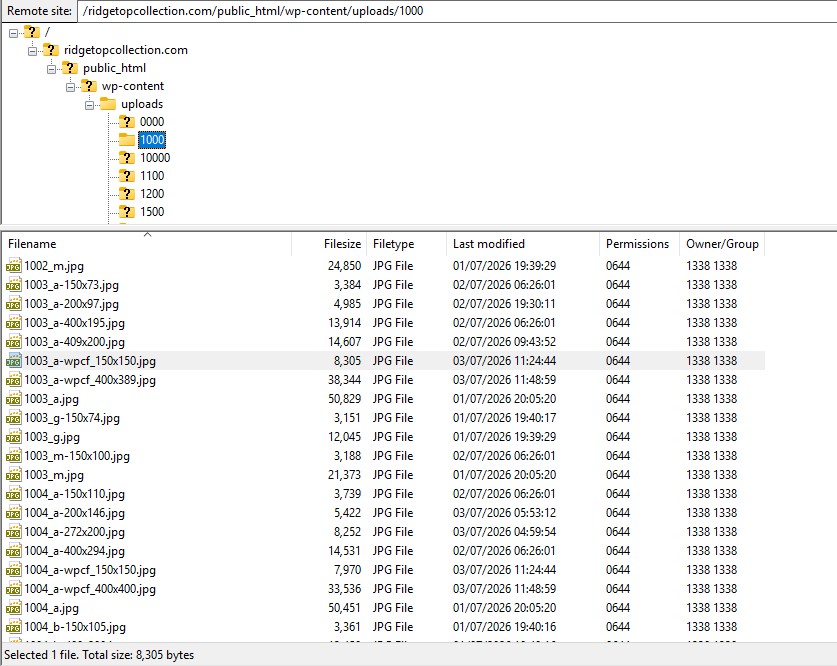
A few days ago I noticed that some of the images were not being displays correctly. My WordPress website deals with ceramics with most pages built with Toolset. What I noticed is that at some point additional files had appeared on the server for some of the images, and that thee Toolset views were using these. For example, 1004_a.jpg (all objects images are imported in a max. 800x800 pixel format) would normally have the WP generated formats 1004_a102x150.jpg and 1004_a 273x400. But for no clear reason also 1004_a-wcpf_150x150.jpg and 1004_a-wcpf_400x400.jpg (with distorted proportions) would appear that would be used in the Toolset views of the database records (but not in WP Media or Media Library Folder Pro or Objectsdbs records, these all have the correct proportions).
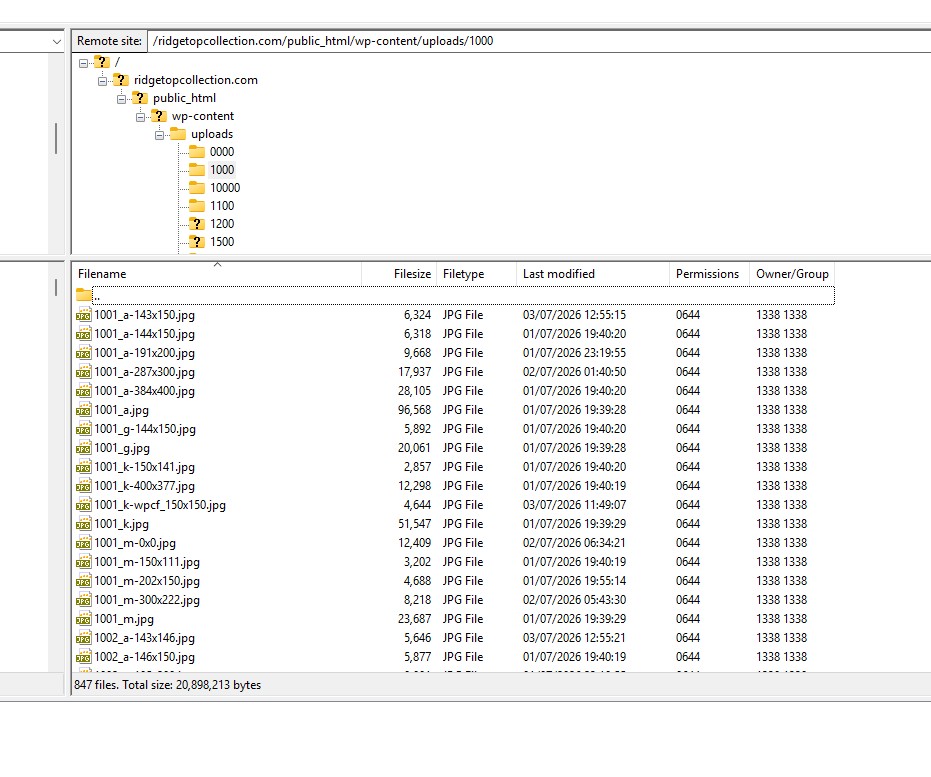
See screenshot FLT view of server folder upload /1000 for the rogue files and Object detail search view in website to see the cropped vase image for object 1004. You can see that images 1007, 1014 and 1015 are not affected by this problem.
The last two days I have tried to pin down which plugin caused the issue. What I now know:
- Not all images are affected, mainly seemingly random _a and _m images (most used in views) but not exclusively.
- Some of the images affected have been in use for many years, some are more recent, both groups have affected files.
- Even if I delete the -wcpf_ files from the server they keep reappearing after a while.
- When I switched all plugins off and deleted the -wcpf files they would not reappear!
- With just Media Library Folders Pro switched on I could import some more images that I added via FLT to the server and they just added the standard max. 150x150 and max. 400x400 formats w/o cropping.
- When I switched just Toolset WP Types, WP All Import and the WPAI Toolset Types Add-On Pro on I could import a few more Objects in the database and images stayed normal on the server.
- But when I (with ONLY Astra Pro and Toolset Access, Blocks, Forms and Types plugins switched on) opened the Objects-Detail-Search view (which shows xxxx_a.jpg and xxxx_m.jpg images) for 27 images the a-wcpf_150x150 versions immediately appeared on the server. For those 27 for 10 also the m-wcpf_150x150 versions appeared.
This makes me suspect something in this view triggers for some images to save new (but incorrect) versions on the host server that then show upin the view. I have seen these versions also apprear for images used in other views but best to find a solution for this view first. The problem started when working with the upload/1000 folder, and at the time did not affect the 2000 to 9500 folders (also ceramics), that were used in the same views. But for analysis I have reduced the Object database to under a 1000 objects from the 1000 series.
I hope you can give me a solution how to overcome thsi issue, my thanks in advance.
I had addedl login info for site, host and FTP but cannot deal with Duplicator as i do not have the package. MThe system does not let me send logins w/o duplicator info, sorry






Hello. Thank you for contacting the Toolset support.
Can you please update the Toolset Blocks to 1.6.25 that's the latest version. You can download it from yur account's Downloads page:
- https://toolset.com/download/toolset-blocks/#changelog
Can you please setup a test page as per the screenshot you shared and share the link with me. Also share few screenshots with what item you have issue and what is your expected results.
Hi Minesh,
Thanks for the quick response!
I have downloaded and unzipped the Toolset Blocks version 1.6.25 but I have no idea how to use it to replace version 1.6.24 in WP, sorry ....Can you give me instructions?
I have cloned the page hidden link as hidden link and exchanged the view object-search-detail-view for a copy named object-search-detail-view -copy. You can use this page and view for testing. I tested the test page after removing all -wpcf_ images from the host server and cleaning browser and host cache. The moment I opened the hidden link the -wpcf_ images appeared on the host server again. So the test page does show the same behaviour as the original page.
In case you want to experiment with other or more images I have added more images from the original uploads/1000 folder (that now only has a small subset) on a Google drive. I would need an email address to share these or let me know another way if needed.
Kind regards
Ruud
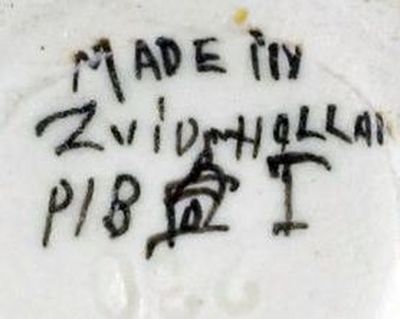
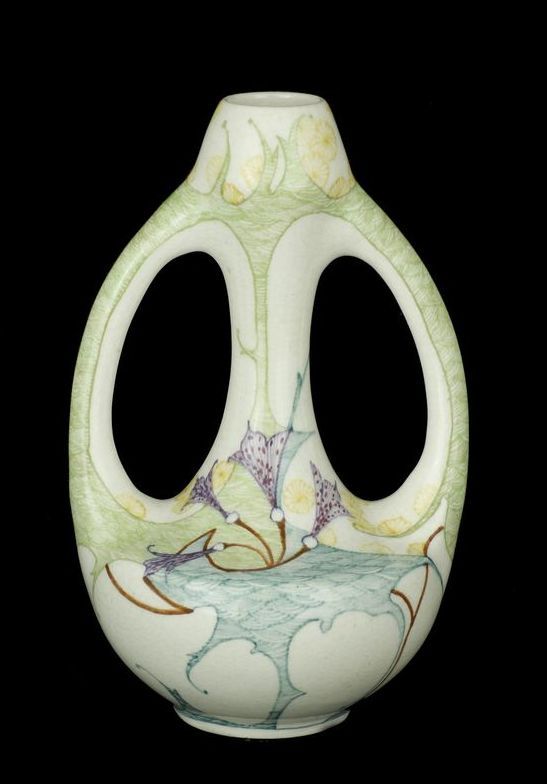
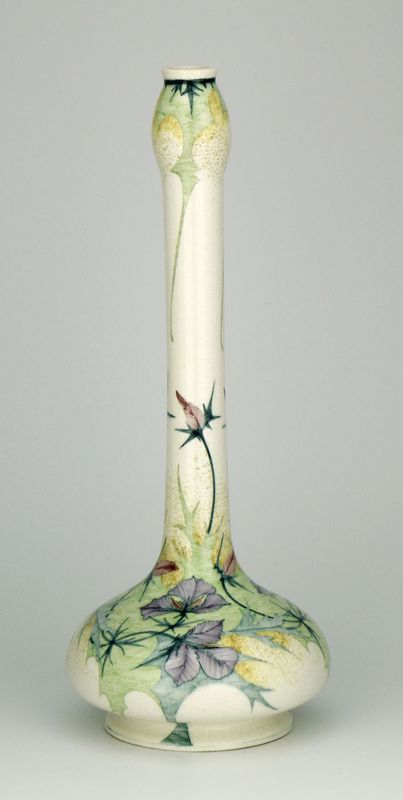

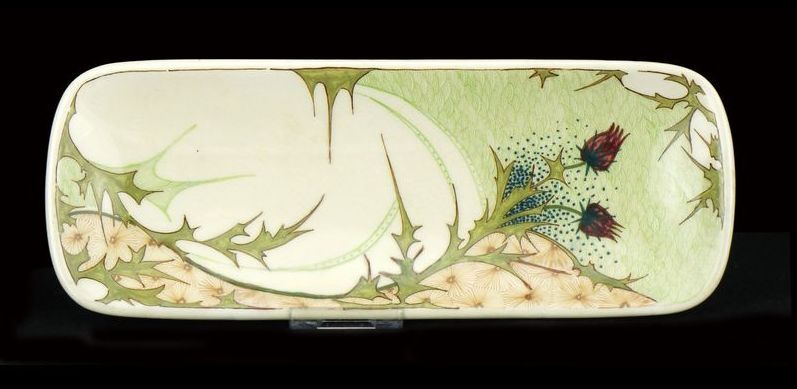
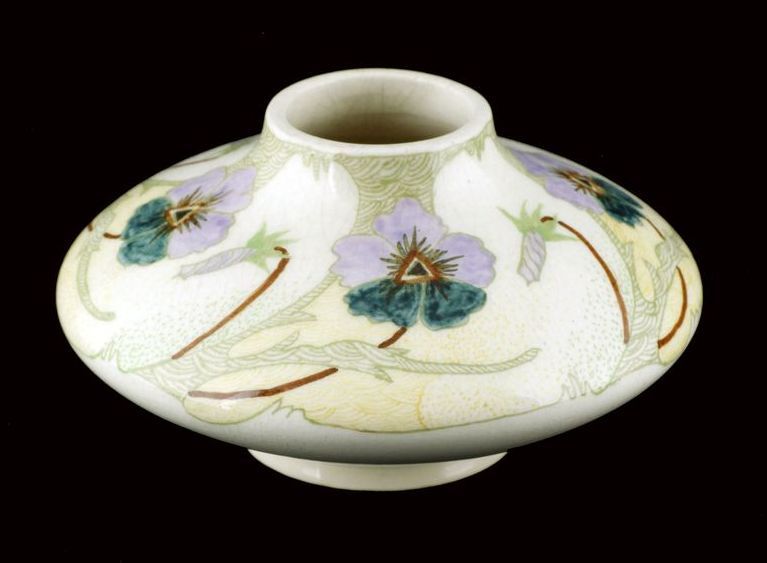
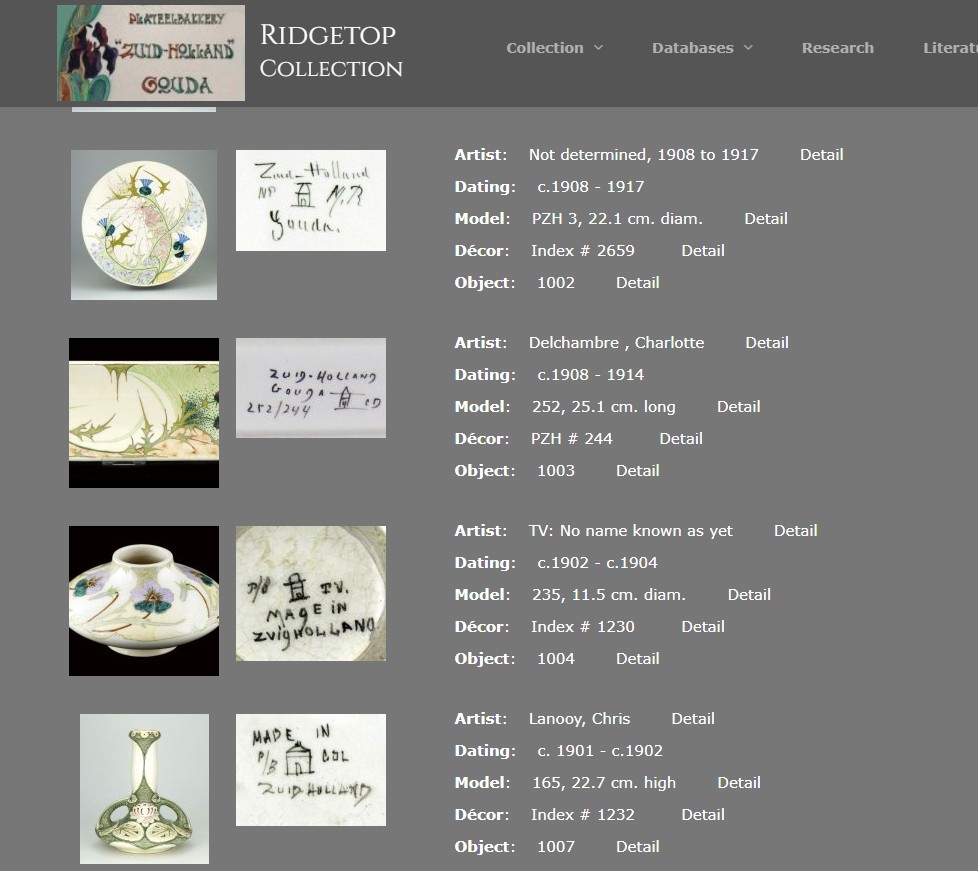
Sorry, forgot the screen shot: Object 1002 shows correctly, object 1003 adn 1004 are cropped, they should show as a proportionally reduced version of atteched image 1003_a and 1004_a. Object 1007 shows fine.
The next screenshot shows object 1016 to 1019. I added 1016_a and -m (-a is the vase, -m the markings under the vase). You can see both are cropped. 1017 is fine, 1018 both -a and -m are cropped. 1019 the vase is cropped, the markings are not.
In every case an image is cropped and not displaying in the correct proportions the view is not using the original file (e.g. the 1019_a.jpg) but the cropped version created on the host server (e.g. the 1019_a-wcpf_150x150.jpg file)
I managed to install Toolset Blocks 1.6.25 I removed _wcpf files on server, cleaned caches and when I opened the object detail search page the _wcpf imaged were immediately recreated. So the new version does not appear the solve the issue

Minesh
I suspect that the images you uploaded are not of the same sizes that's why you do not see the same images like same heaight and width of every images.
Here is the Doc that shows information about how you can display images with Toolset:
- https://toolset.com/course-lesson/displaying-images-with-toolset/
You can resize/crop image to your desired height/width:
- https://toolset.com/course-lesson/displaying-images-with-toolset/#setting-the-image-size-and-cropping-options
Even after following the above Doc your issue still persists, maybe you can regenerate thumbnails in your desired image dimention and check if that helps.
*** Please make a FULL BACKUP of your database and website***
Try to install any of the plugin and regenerate the thubmnails:
- https://wordpress.org/plugins/force-regenerate-thumbnails/
- https://wordpress.org/plugins/regenerate-thumbnails-advanced/
- https://wordpress.org/plugins/search/regenerate+thumbnails/
And then try to display the images.
Alternatively - you can add a container block and fix minimum height for container like 400px and then add image block with width 100%.
Please check the following related:
- https://wordpress.stackexchange.com/questions/214710/how-do-you-change-all-images-dimensions-to-have-the-same-size
*** Please make a FULL BACKUP of your database and website.***
But you can do any sure exprements or testing with by setting up the staging site. You can setup a staging site that should be 1:1 copy of your current live/production site and then you can try to follow the above steps.




Hi Minesh,
I have run this website for the last 6 years (since I started it) and this issue had never occured. Every image (I make my own photos and download a lot of images of objects from auction house, websites etc etc) that I upload to my website I make sure is a .jpg and to reduce the size I reduce every a,b,c,d,g and k image (different views of the every object) to maximum 800 by 800 pixels, keeping the original proportions. I have set the thumbnal size in WordPress to 150x150 (proportional) and as in between size to 400x400. If you go into the Upload forlders on the host server via FTP you can see all images. The only images i store in a different size and the z, z1 and z2 images ( screenshots of the webpage where i found the object, like the auctionhouse web page for that object). But these are do not use on my website pages at the moment.
I try to use the 150x150 max and 400 by 400 max sizes for most pages in the website, with sometimes the Lightbox opening the full 800 by 800 max format.
I have used specific other formates on some pages and I was busy going to all my web pages (Toolset Views) to see how many of these I could remove when I discovered the issue with rogue files.
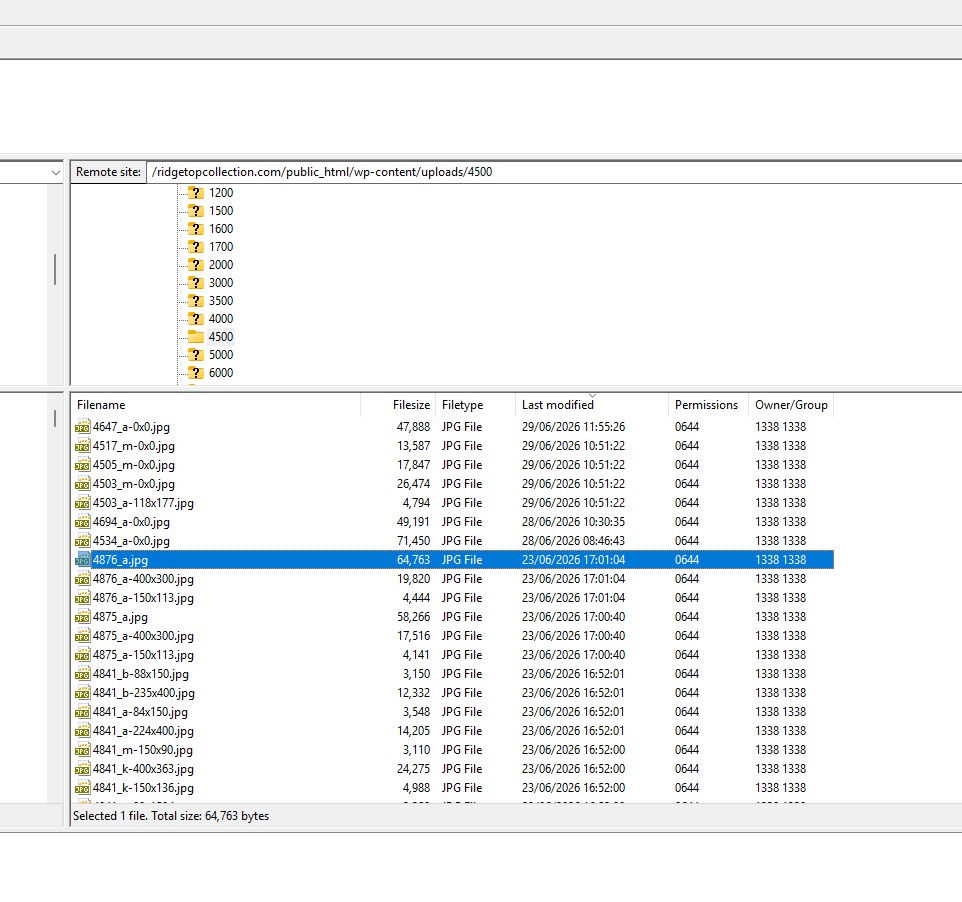
The problem now is that while the correct image sizes are on the server (see screenshot) like 1003_a-150x73.jpg and 1004_a-150x110 (both in the correct proportions, attached) out of nowhere Toolset also seems to have placed 1003_a-wcpf_150x150.jpg and 1004_a-wcpf_150x150.jpg on the host server and the view is displaying these images that have the wrong proportions (cropped).
Can you please have a look at the coding in the view if you can find out why the incorrrect images are created and why the view uses these? What really puzzels my is that not all images are affected, only certain. And every time you test it is exactly the same files that are affected. And some of the images have been in use for years and NEVER caused problems.
I added a screenshot of the Uploads/4500 folder that contains the last images that I uploaded on 23 June 2026 before the issue with the -wcpf_150x150 and -wcpf_400x400 images started.
Hope thsi explains the problem better
Ruud
Minesh
Can you please check now: hidden link
What is the height and widht of image you want to display with above page? Is it 200x200?
Hi Minesh,
Your solution (a new Resized size of 145 x 150 px looks OK visually but only because the 1001_a image is almost square. If it was rectangular upright it would not work for any other image that is of a rectangular flat laying size as it would not be proportional reduced. So it is not the real soluton for the problem. It would also mean that for thousands of images in the database a new size would be introduced side by side with the WP generated thumbnail of max 150x 150 proportional. For the 1001_a image I always used the 144 x 150 thumbnail , and I would like the system to work again as it has the last 6 years! If you look at the Uploads/1000 folder the thumbnail for 1002 is 146x 150, your fix has introduced a new size of 143 x 146!!!
I want to do some more investigation myself as I want to find an asnwer for:
- when did the problem first occuur?
- why are not all images affected?
- are there other Toolset views that trigger the issue
- it looks like only images imported after 23 June are affected, what changed after that date?
- although the -wcpf addition looks like a Toolset code is there something in image format or import method that causes the problem.
I come back to you next week with my findings. For now I backup the present site version and will roll back to an earlier version and see what I find.
PLEASE DO NOT make further changes untilI come back to you
Have a good weekend,
ruud
Hi Minesh,
I rolled back the site to 24 June (Toolset Blocks 1.6.22 and Media Library Folders Pro 8.5.0 ) and step by step tested importation of batches of images and testing views. I first updated to MLF Pro 8.5.1 and then via TS Blocks 1.6.23 to 1.6.24. The issue with wpcf rogue image files did pop up again but for different image files than the ones in our earlier correspondence.
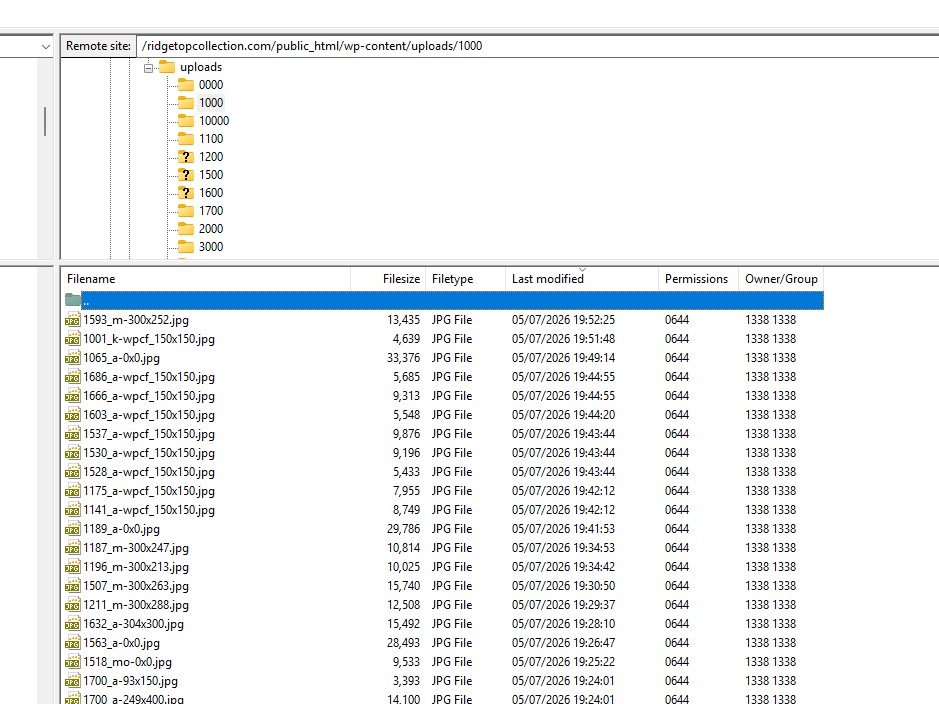
In the end I have come to the concluson that the faulty image files are the result of trying to import too many image files in one batch when I ask MLFP to sync the WP Media Library with image files placed in the Upload sub folder on the host server via FTP. The last week I had experimented with different upload methods and batch sizes. Over the weekend I found that a batch of under 100 is normally OK, just over 100 increases the chance the files form a wpcf version that does not display in the right proportions. As you can see on the screenshot there were only 9 faulty files on 1654 imported files. But 100 images batches makes slow going when you want to make changes to a 20000 image library;)
For me you can close the ticket, the prblem does not seem the be within Toolset itself. I am now planning to install SSH and use WP-CLI commands to manage a step by step importation of large amounts of images on the host server into the WP Media Library.
Big thanks for your help,
Kind regards
Ruud
I probably should have waited raising thsi issue as I was not yet sure it was a Toolset problem. But I got stuck analysing it myself, so the feedback from Minesh gave me fresh ideas to test and experiment. It showd me the images and views were not the root cause and the method of importation of images likely was.
So the next step is to make that process more robust and suitable for large batches of images