Skip Navigation

[Resolved] Table Headers getting messed up when changing Custom Search Filter

This support ticket is created 3 years, 11 months ago. There's a good chance that you are reading advice that it now obsolete.

This is the technical support forum for Toolset - a suite of plugins for developing WordPress sites without writing PHP.

Everyone can read this forum, but only Toolset clients can post in it. Toolset support works 6 days per week, 19 hours per day.

Sun Mon Tue Wed Thu Fri Sat
- 9:00 – 13:00 9:00 – 13:00 9:00 – 13:00 9:00 – 13:00 9:00 – 13:00 -
- 14:00 – 18:00 14:00 – 18:00 14:00 – 18:00 14:00 – 18:00 14:00 – 18:00 -

Supporter timezone: Asia/Hong_Kong (GMT+08:00)

This topic contains 1 reply, has 2 voices.

Last updated by Luo Yang 3 years, 11 months ago.

Assisted by: Luo Yang.

Author
Posts
#2293129
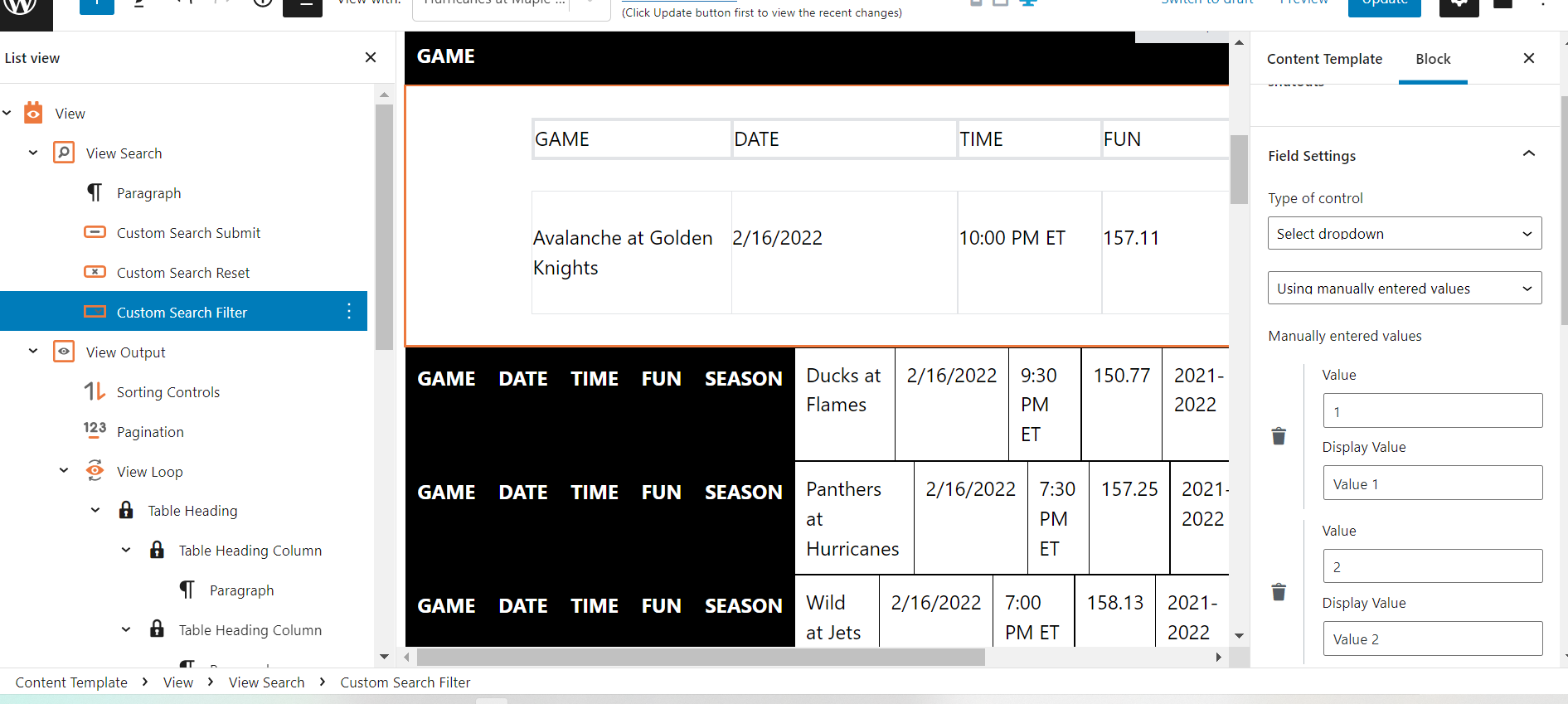
ToolSet Manual Table Search Error 02152022.png

I am trying to: Change Custom Search Filter UI items such as dropdown style, moving search UI elements up/down, etc.. without having other UI elements on the page affected

Link to a page where the issue can be seen:localhost dev machine

I expected to see: My altered search filter changes

Instead, I got: A messed up View table with the headers showing as the first columns in the table. See screenshot. Black background columns are actually table headers. This seems to happen when I change the Search Filter by moving it up/down or even changing its properties such as control type. If you save the view in this condition, it will render that way when visiting the live page. You can exit the Content Template page, reload it, and the table corrects itself. You can then save and it seems to correct itself. However, having to exit and return each time I change a search property is troublesome and irritating.

#2293707

Hello,

There might be some broken HTML tags when you move the UI elements, to avoid such kind of issue, I suggest you setup the post view with classic editor, for example:
1) Dashboard-> Toolset-> Settings-> General, in section "Editing experience", enable option "Show both the legacy and Blocks interface and let me choose which to use for each item I build".
2) Dashboard-> Toolset-> Views, setup a post view in table layout mode, and test again