Toolset November 2026 Release: Instant Search for Your Visitors, a Calmer Editor for You

If your site lets visitors search or filter anything, whether properties, products, members, courses or listings, this release makes that search feel instant. And if you build those sites, the block editor finally stops getting in your way: posts open exactly as you saved them, clicks stay quick on pages full of Views, and the editor has less to load before you can start.
In short, after you update:
- Search answers faster, everywhere. Quick filter changes are bundled into one request, text fields can search as visitors type, and the server sends back only the part of the page that changed.
- Instant search, one switch away. Turn it on for a View and every filter change is answered right in the visitor’s browser, in 10 to 35 ms, with no trip to your server at all.
- Searches your page cache can serve. A new setting lets a page cache answer repeat searches from logged-out visitors in about 2.5 ms.
- Maps that keep up. Markers move on the map instead of the whole map reloading after every search.
- A block editor that stays out of your way. No more “unsaved changes” warnings on posts you only opened, quicker clicks on pages with Views, smoother style sliders, and 29 fewer files to load.
- Clean on PHP 8.4 and 8.5. Every Toolset plugin, with a quiet error log.
Everything that changes how your site behaves for visitors is either automatic and invisible, or off until you turn it on. Here is what each change means for you.
Instant search: results before your visitor lifts their finger
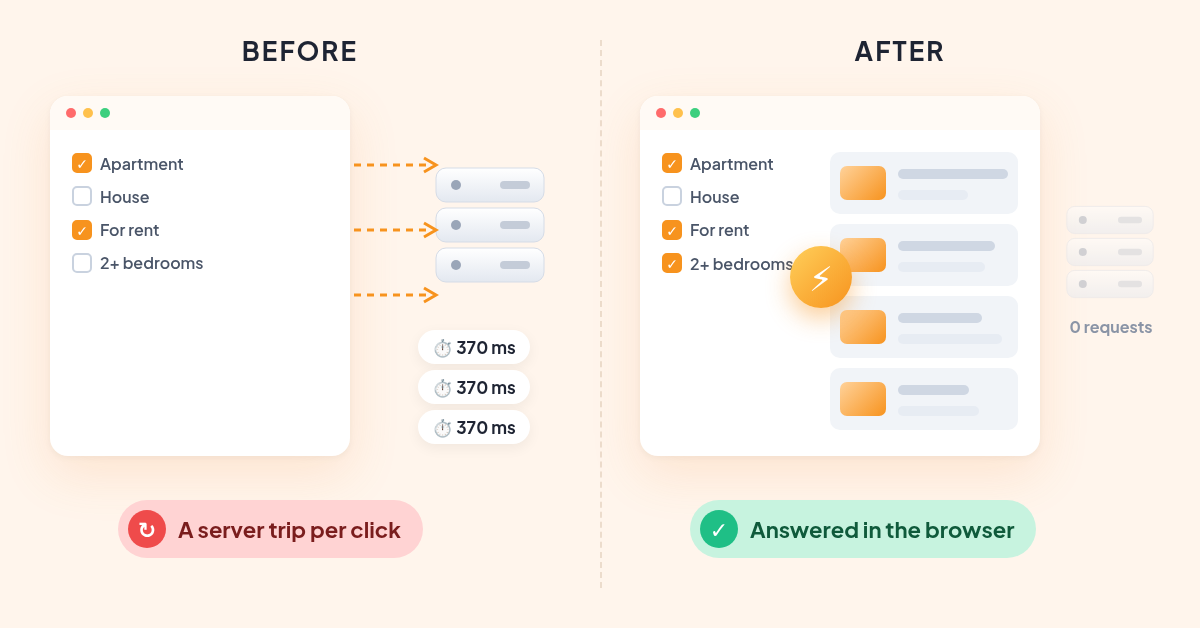
Until now, every time a visitor ticked a filter, the browser asked your server for new results and waited. On our test site, each of those trips took about 370 milliseconds. Six filter changes meant six trips, six waits, and six times your server had to build the page.
With Instant search turned on, the page fetches the list once, the moment the visitor reaches for the search form. After that, every filter change is answered right in the visitor’s browser. On the same test site, the same six changes sent no requests at all, and the results updated in 10 to 35 milliseconds. That is faster than the blink of an eye, and it costs your server nothing.
Everything else keeps working the way your visitors expect: the result counts, “show only options that would produce results”, the page address, the Back button and screen reader announcements. If a search ever needs the server, for example a price typed with a comma, Toolset quietly asks the server as before, so the answer is always right.
How to turn it on: select your View block, open the Custom Search panel and switch on Instant search. It works for block Views and block WordPress Archives that list up to 300 results. If a View can’t use it, for example because it filters by distance or by a relationship, the panel tells you why.
Search as you type, and fewer trips for everyone
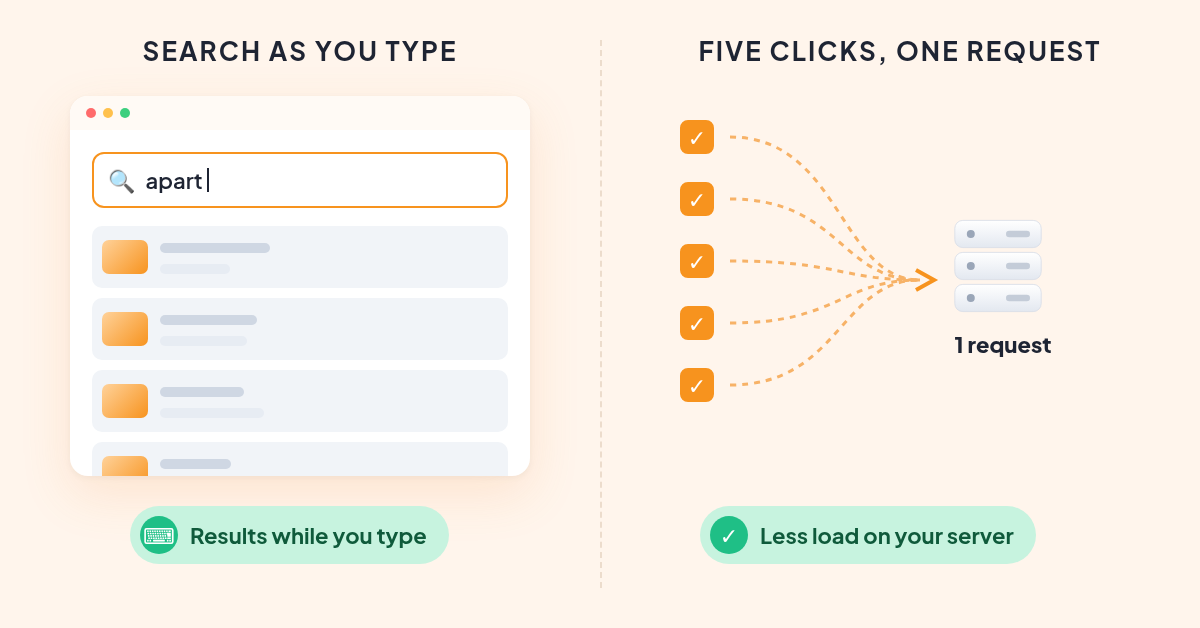
Visitors rarely change just one filter. They tick three boxes in a row, then change their mind. Before, every single click sent its own request, and responses could even arrive out of order. Now Toolset waits a moment, bundles quick changes together and sends one request for all of them, so five quick ticks cost your server one or two requests instead of five. Only the latest results ever reach the screen.
Text search fields can now search as the visitor types: results update when they pause, from the third character on, without losing their place in the field. And when the server answers, it now sends back only what changed, the form or the results, instead of rebuilding parts of the page the browser would throw away.
How to turn it on: search as you type is a setting on each View that updates its results when a filter changes. Request bundling and the lighter responses are automatic.
Searches your page cache can answer in 2.5 milliseconds
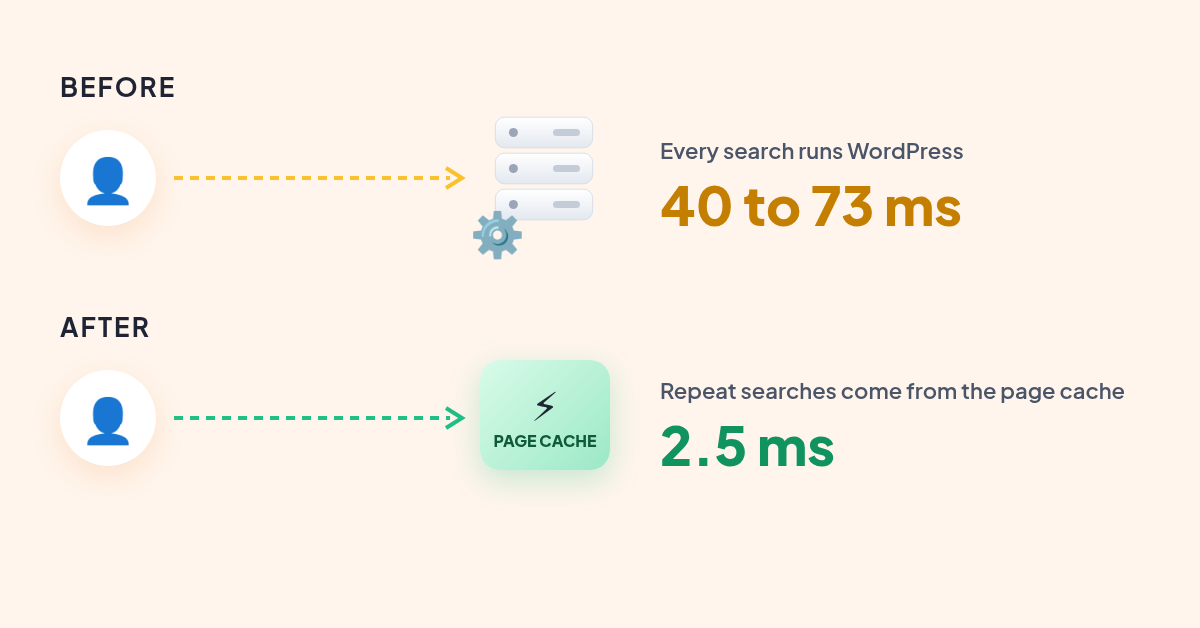
Page caches are the cheapest speed boost a WordPress site can get, but they could never help with search. Toolset sent every search through WordPress’s admin-ajax.php, which no page cache touches, so every search from every visitor ran WordPress from scratch.
A new setting changes that. With it on, searches, sorting and page changes from logged-out visitors go through the page’s own address, so your page cache can store the results and serve them again. In our test behind WP Super Cache, a repeated search came back in 2.5 milliseconds instead of 40 to 73. On a busy site, popular searches stop costing your server anything. Toolset only uses a cached answer when it was made for the exact same View, page and search, so visitors never see the wrong results.
How to turn it on: go to Toolset > Settings > Front-end Content > Search requests. Turn it on only if your page cache stores addresses with a query string. Without such a cache, searches are slightly slower, and the setting says so.
Maps stay put while the results change
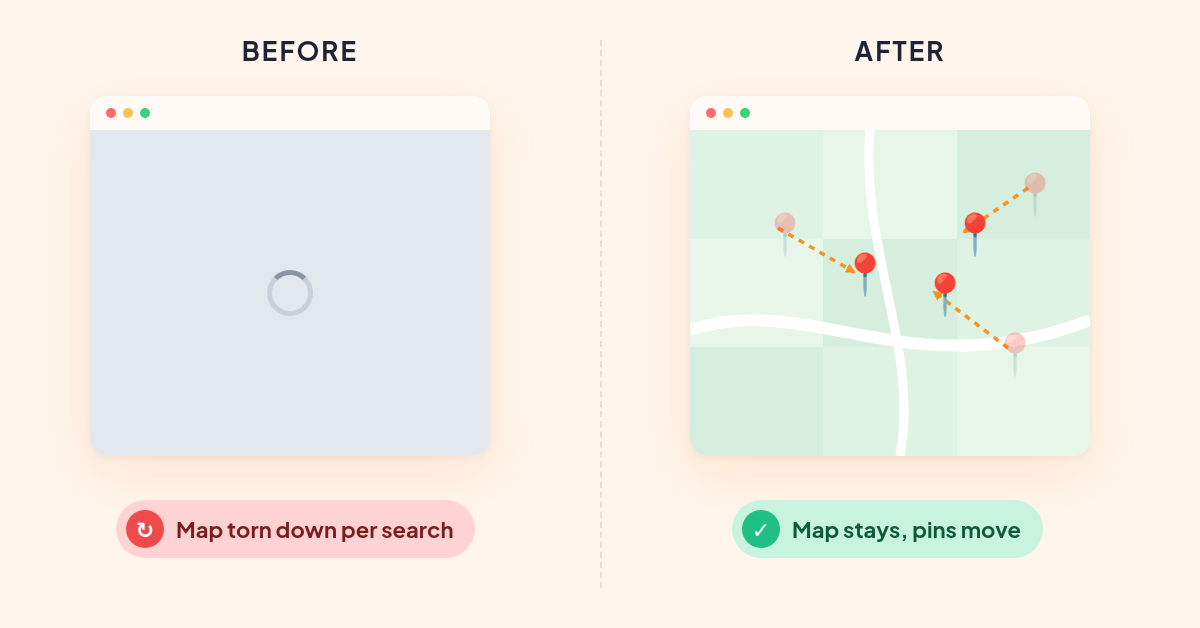
When a search updated a View, Toolset Maps threw the map away and built a new one. Visitors saw the map flash grey and reload its tiles after every search, and a search with no results sent the map to the middle of the ocean, at latitude 0, longitude 0. With Google Maps, every rebuild could also count as a new map load on your bill.
Now the map stays on screen and only the markers change. No flash, no jump, and no extra map loads. When a search finds nothing, the map simply keeps its view.
How to turn it on: it is on for every Map block you insert from now on. For existing maps, turn on Update markers without reloading the map in the Map block’s settings, or add refresh_markers="on" to the map shortcode in a classic View.
Posts open exactly as you saved them
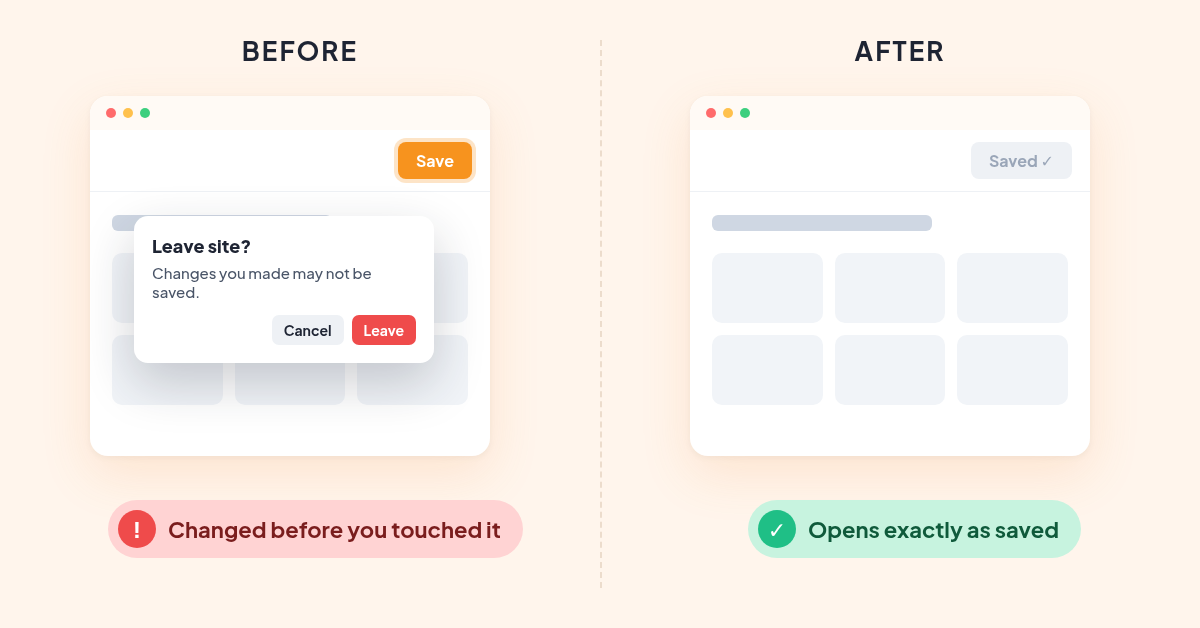
You open a page just to look at it, change nothing, and try to leave. WordPress stops you: “Changes you made may not be saved.” It happened because Toolset blocks quietly rewrote their own settings the moment they appeared in the editor. A page with a View made 9 changes before you touched anything, and a WordPress Archive made 19. The Save button lit up, Undo offered changes nobody made, and autosaves filled your revisions with nothing.
That is over. Toolset blocks, Views, Archives, Maps, WooCommerce blocks and the Form block now open exactly as they were saved. Leaving a page you only looked at is just leaving. And when you insert a block, one Ctrl+Z takes it back, where some blocks needed two or three before.
An editor that feels lighter on big pages
- Clicks stay quick inside Views. Clicking a block inside a View used to redraw the View around it. Now the View only redraws when its own settings or data change.
- Views stop working in the background. Each View used to re-check its content on every change anywhere in the editor, even WordPress’s own check-in every 10 seconds. Now it reacts only to changes in its own blocks.
- Smooth sliders and colour pickers. Dragging a style slider redrew about 1,200 parts of the sidebar at every step. Now only the control you are moving updates.
- Dynamic content asks only when it must. One change used to make every block with a dynamic source ask the server again. Now only the blocks whose content changed ask.
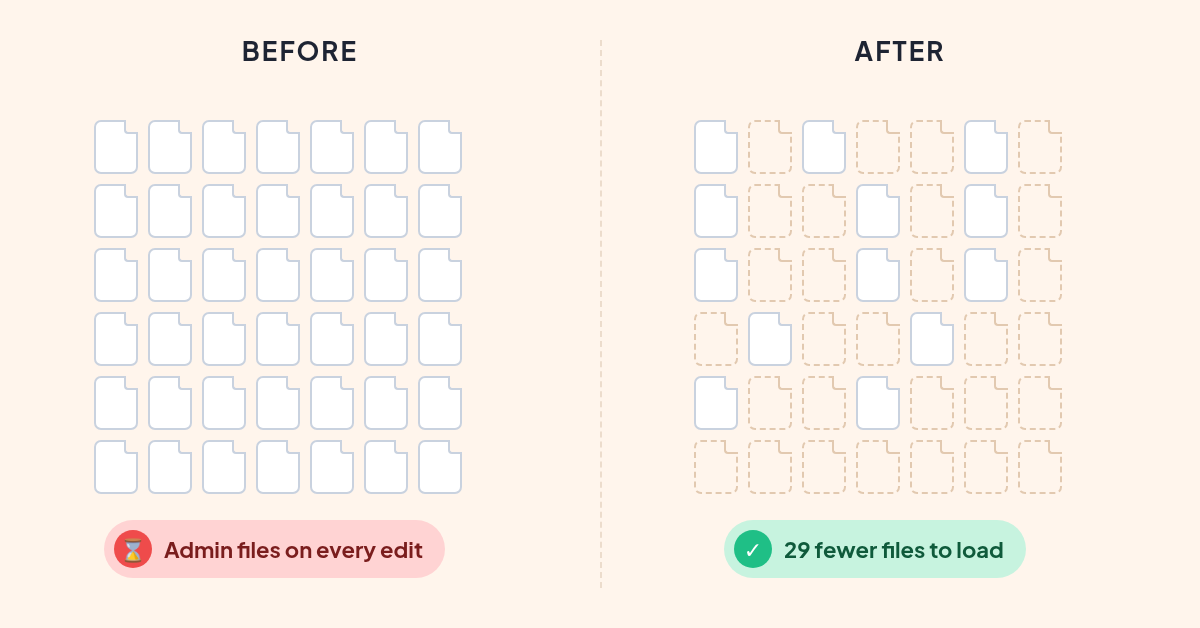
- Less to load before you start. The block editor was loading scripts that only Toolset’s own admin screens use. A new page now loads 29 fewer Toolset files, so the editor is ready sooner.
Ready for PHP 8.4 and 8.5, across the whole suite
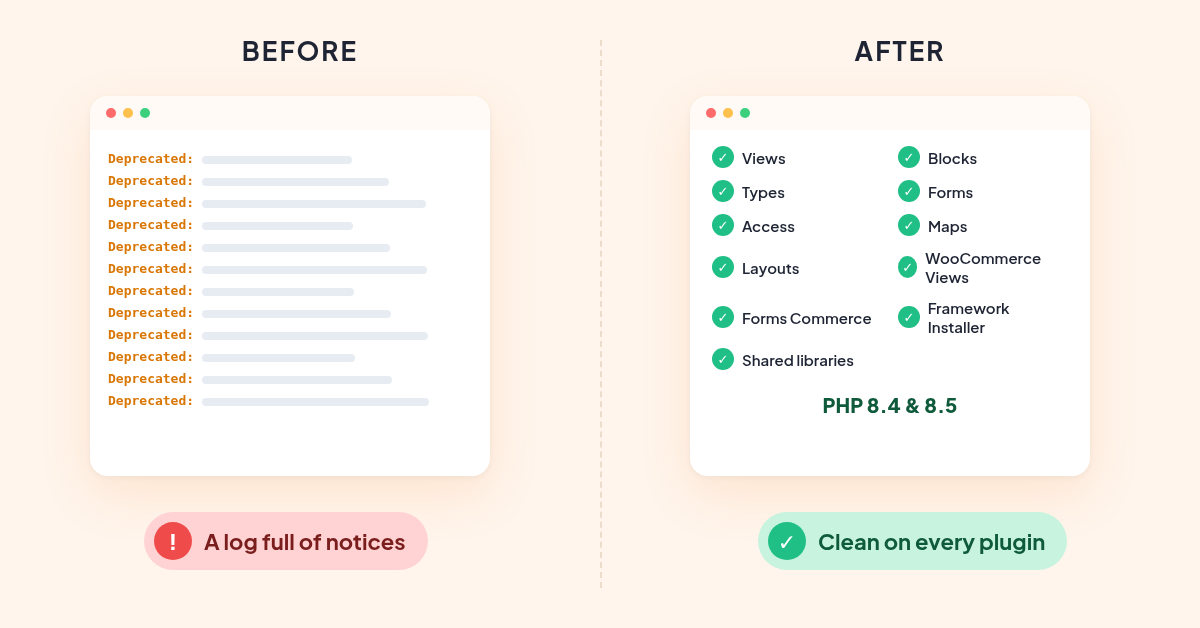
We checked every Toolset plugin and shared library against PHP 8.0 to 8.5 and fixed every deprecation notice in our own code: more than 130 in Forms, Layouts and Access alone, and the rest in Views, Blocks, Types, Maps, WooCommerce Views, Forms Commerce and Framework Installer. Your site kept working either way. What changes is your error log: quiet again, so the messages that matter stand out, and Toolset ready for the PHP versions still to come.
Safer for your site and your data
- No more false malware alarms. Some hosting providers’ malware scanners flagged an old ZIP library bundled with Toolset. It was a false positive, as the library was never harmful, but it worried site owners and could get files quarantined. The library is gone, and Layouts export now uses PHP’s own ZIP support.
- No accidental reference-site installs. In Framework Installer, the Install button, which replaces your site’s database, could become active without both confirmation boxes ticked. It now stays disabled until you confirm both.
- No more runaway pages. A shortcode that resolved to itself, as some bbPress setups do, could keep a page processing until the server gave up. Toolset now stops as soon as there is nothing left to process.
Other fixes you may have been waiting for
Views and Toolset Blocks
- The View wizard’s Back button no longer deletes a View you have finished.
- Inserting sorting controls no longer changes your View’s own ordering behind your back.
- The “query filters missing from the form” warning no longer appears by mistake, and its suggested fix no longer deletes filters that work.
- Imported block Views open without PHP warnings, and a View block whose View was deleted no longer causes errors.
- Toolset blocks work in the Widgets editor without PHP notices.
- Code editors in classic Views load again.
- A form inside a Fields and Text block keeps its preview box, with or without Access.
- The Repeating Field carousel no longer starts without slides.
Types
- Required fields are checked on Save even when the block editor loads slowly.
- Quick edit in the related content box saves again in the block editor.
- Uploading an image no longer logs PHP notices.
- Types ships the latest OTGS Installer, 5.4.2.
Forms
- Relationship forms can be deleted again.
- Notification emails keep the HTML you wrote, without extra paragraphs.
- Users who register with a password that contains a quote can now log in with it.
Maps
- Clicking a cluster on a zoomed-out Google map zooms in, and no visible markers are left out.
- The address cache rebuild carries on past an address it can’t find, instead of stopping for an hour.
- The Map block’s hint and pop-up editor keeps what you typed when the post saves.
Layouts, WooCommerce Views and Theme Settings
- The Layouts CSS and JS editors show again, and the Layouts Migration page works on PHP 8.
- WooCommerce Views block previews stay visible after you save.
- WooCommerce Views no longer stops the site when Views, Blocks and Types are all inactive.
- Integrated themes no longer log a PHP 8.5 notice from Theme Settings.
How to update
- In your WordPress admin, go to Plugins and open the Commercial tab.
- Click Check for updates and update all Toolset plugins.
- Alternatively, download the latest versions from your toolset.com account.
Nothing changes for your visitors until you decide: Instant search, search as you type and cached searches are off until you switch them on, and existing maps keep working as before until you enable the new marker updates. Everything else, from the lighter editor to the PHP fixes, works the moment you update.
This release includes Toolset Views 3.6.31, Toolset Blocks 1.6.31, Types 3.6.5, Forms 2.6.28, Access 2.9.8, Maps 2.4.2, Layouts 2.6.21, WooCommerce Views 3.1.9 and Forms Commerce 1.8.6.
As always, we recommend updating a staging site first. The updates are rolling out gradually through the installer.
Try Instant search on your busiest View and tell us in the comments how it feels. We would love to hear which search you switched on first.


Hi, I’m excited about this release and can’t wait to test it. Quick question: do Instant search and search as you type also work with Legacy Views, or only with block Views?
Thanks!
Updated on one site with Leg. Views, and Yes!
I have dropdowns for showing sites in different countries on a map. Takes about .5 sec now!
Thanks, glad you’re looking forward to it!
Search as you type works with legacy Views as well as block Views. In the legacy View editor, open the Custom Search settings and choose “AJAX results update when visitors change any filter values”. You’ll then see a “Search as you type” checkbox. Once it’s on, results update after a short pause when visitors type at least three characters. It works for Views but not for WordPress Archives.
Instant search is only available for block Views and block WordPress Archives for now, for lists of up to 300 results. You turn it on from the Custom Search panel of the View block. Bringing it to legacy Views is on our roadmap, and we’ll announce it when it’s ready.
If you give either one a try, I’d love to hear how it works on your site.
Only using legacy so I’ll have to wait then for the search.
Thanks for the #1 Map update!!
Thank you, that’s great to hear!
A quick tip in case you haven’t tried it yet. The new behaviour, where the markers move without the map reloading after a search, is on automatically for every Map block you add from now on. For maps you already have, turn on “Update markers without reloading the map” in the Map block’s settings. For maps in classic Views, add refresh_markers=”on” to the map shortcode.
I use classic views so will try taht tomorrow and let you know.