This is the technical support forum for Toolset - a suite of plugins for developing WordPress sites without writing PHP.
Everyone can read this forum, but only Toolset clients can post in it. Toolset support works 6 days per week, 19 hours per day.
This topic contains 9 replies, has 1 voice.
Last updated by Christopher Amirian 2 months, 2 weeks ago.
Assisted by: Christopher Amirian.

I am building a CPT to display different fields of study (Studierichting) for a school. Each CPT should display a few related fields. But the relation is not just in the same category or tags. We need to hand pick the related posts.
Example: in the first year you pick study A and thereby in the second year, the most logical studies would be E and F and in the 3 year the most logical studies would be K and P.
I tried to do this with Post Relationship, but it does not let me connect 2 CPT from the same Type.
How would I do this?




Hi,
Welcome to Toolset support. You can do “hand-picked related posts” in Toolset. The key is: don’t use a Post Relationship for this, because Toolset Relationships are meant for different post types (Parent/Child style). For “related posts within the same CPT”, use a Types field that stores selected posts.
1) Create the field
- Go to Toolset → Settings → Post Types (or Toolset → Custom Fields, depending on your UI).
- Edit the Field Group used by your Studierichting CPT.
- Add a new field:
. Type: Post Reference Field (or Post Select / Posts selector — naming varies by Toolset version)
. Allows selecting: Posts from the same CPT (Studierichting)
. Multiple selection: enable it (since you want several related studies)
Example field slug: related_studies
Now, when editing “Study A”, you manually pick “E” and “F” (and any others).
2) Display the hand-picked items on the single template
- Create a View that reads the selected posts
- Toolset → Views → Add New
- Content to display: Studierichting
- Query filter: add “Filter by Post IDs” and set it to the field you created (the post reference field).
- Depending on your Toolset UI, you’ll choose something like:
“Post IDs are set by a custom field” → select related_studies
- Output the loop as cards/links.
Then insert this View in the Single Studierichting Content Template.
I think that should do the trick if I understood the requirement correctly.
Thanks.
Hi Christopher,
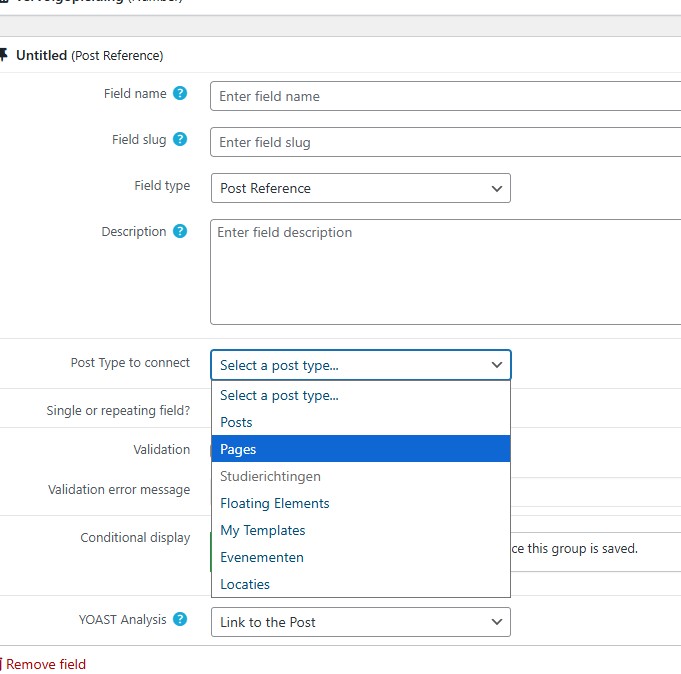
Thank you for your reply. I have already tried the Post Reference Field, but "Studierichtingen" is greyed out.
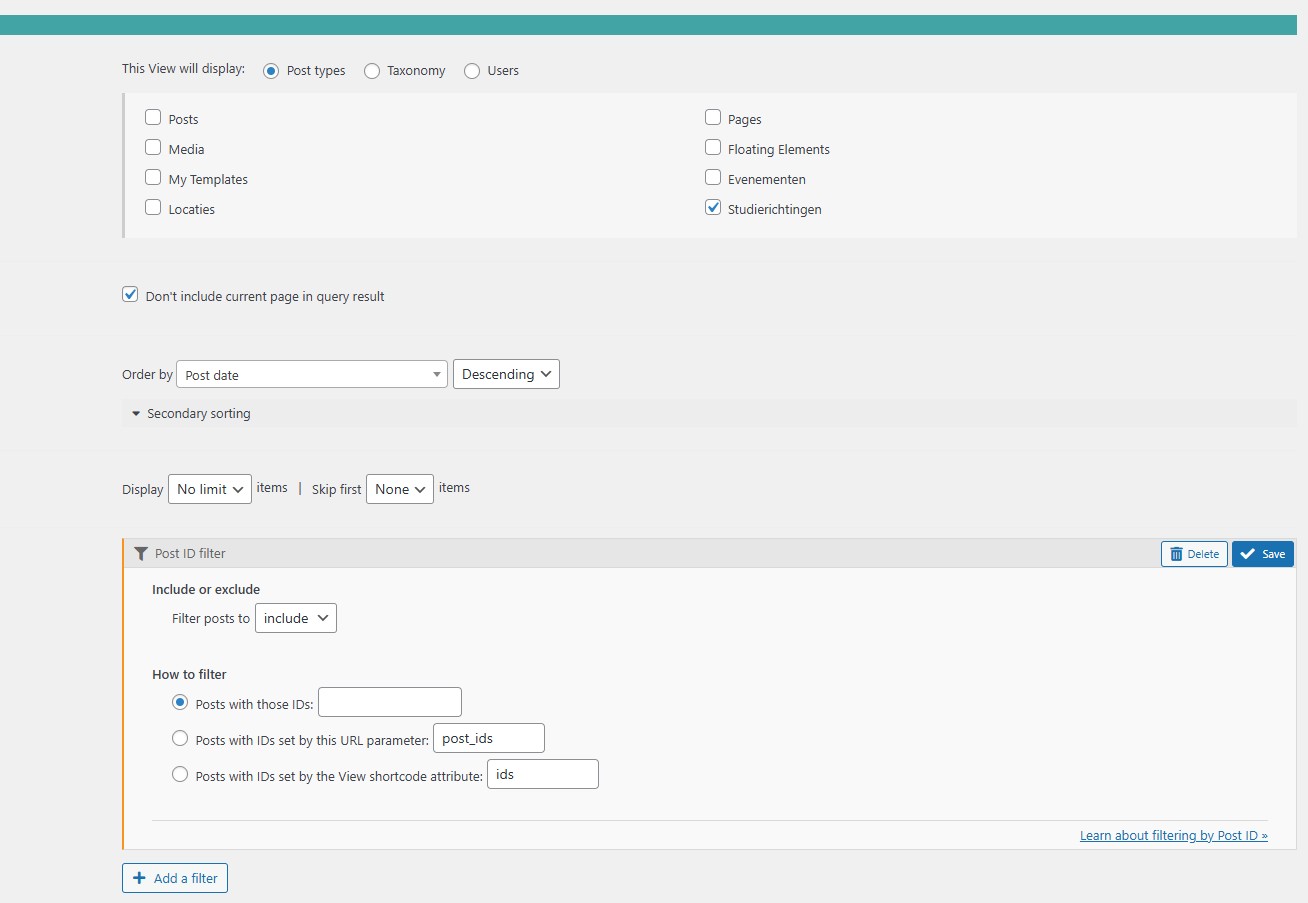
Even if I were able to create the Post Reference Field, then the View filter would not let me pick Post IDs are set by a custom field.
Ok I missed that point, you indeed can not select the same post type there too.
mmm.... This will go into experimental scenarios now that I have not tested. But in theory, it might work.
What if you add an intermediate post type to circumvent the same post type selection limitation?
Create a small bridge post type that stores the hand-picked links. As an example, create a new CPT, e.g. Study Links (slug: study-link).
After that, create a Relationship:
Parent: Studierichtingen
Child: Study Links
Type: one-to-many (1 study can have many study link items)
In the Study Links field group, add a Post Reference Field:
Reference post type: Studierichtingen. (now it will NOT be greyed out, because you're selecting a different post type than Study Links)
When editing Study A, add child Study Link items. Each one points to E, F, K, P, etc.
Create a View with study links as the content selected and add a query filter:
Select items related to the current post (relationship parent = current Studierichting)
In the loop, output the referenced Studierichting (title + link)
Insert that View into the single Studierichting template.
Again, this is what I thought might work but honestly I did not test.
Thanks.
Hi, thank you for your solution, will certainly try that. Will I be able to select the actual Study from a dropdown of will I still need to look up the ID of that study and then enter it as a number?
In the meantime, I got something working myself.
I still have my view with the Post ID filter : Include only posts with IDs set by the View shortcode attribute "wpvpostin"
Then I tried to populate that wpvpostin attribute with [wpv-post-field name="wpcf-vooropleiding"] but the nested shortcodes didn't work, I always ended up with "]
So Claude.ai helped me create this snippet to circumvent the nested shortcodes.
add_shortcode('vooropleiding-view', function() {
$vooropleiding_id = get_post_meta(get_the_ID(), 'wpcf-vooropleiding', true);
if ($vooropleiding_id) {
return do_shortcode('[wpv-view name="view-vooropleiding" wpvpostin="' . $vooropleiding_id . '"]');
}
return '';
});
Hi,
With the bridge CPT approach, you should be able to select the related Study from a dropdown / post selector UI (no ID lookups), because the Study Links post is a different post type, so Toolset allows the Post Reference Field to point to Studierichtingen, but you need to test and see the result.
I am not sure if the custom code approach will work or not. You will need to test that. We will not be able to give custom solutions like that as it might have other side effects that we can not be responsible for to handle.
I also checked with AI and it gave me this solution:
add_shortcode('vooropleiding-view', function() {

    $raw = get_post_meta(get_the_ID(), 'wpcf-vooropleiding', true);

    if (empty($raw)) {
        return '';
    }

    $ids = array();

    if (is_array($raw)) {
        $ids = $raw;
    } else {
        // Could be "123" or "123,456"
        $ids = preg_split('/\s*,\s*/', (string) $raw, -1, PREG_SPLIT_NO_EMPTY);
    }

    $ids = array_map('absint', $ids);
    $ids = array_filter($ids);

    if (empty($ids)) {
        return '';
    }

    $id_list = implode(',', $ids);

    return do_shortcode('[wpv-view name="view-vooropleiding" wpvpostin="' . esc_attr($id_list) . '"]');
});
It has better handling as Toolset accepts comma separated list for wpvpostin. But I can not guarantee that the code above will work as it is suggested by AI.
Thanks.
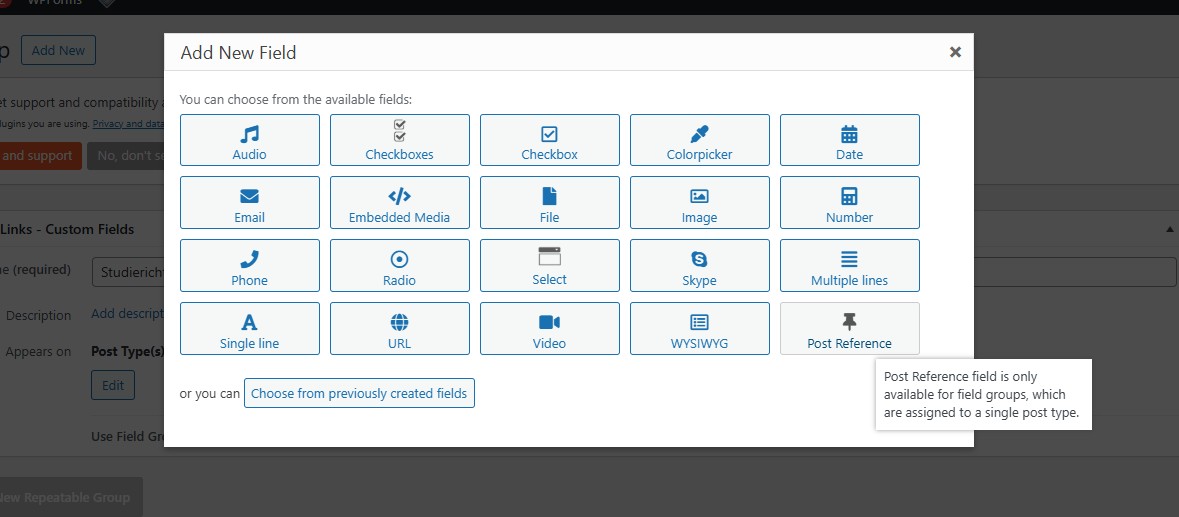
I tried your approach via the Bridge post, but I cannot add a Post Reference field to the Study Links field group, see screenshot
Hi,
I'd appreciate it if you could give me the URL/User/Pass of your WordPress dashboard after you make sure that you have a backup of your website.
It is absolutely important that you give us a guarantee that you have a backup so if something happens you will have a point of restore.
Make sure you set the next reply as private.
What I want to see is how you setup the study link that you get such a message.
Again just to make sure we are on the same page I did not test the method so it might be the fact that it is not possible to do so in the first place. But I will check your installation.
Thanks.
Thank you. I found out why that message you shared was showing for the post reference. Because you assigned the Studierichtingen Links - Custom Fields for all post types.
I went to the custom field group and selected only Studierichtingen Links post type and now you can select the post reference fields and follow the steps.
Thanks.
The topic ‘[Closed] Display hand picked related posts’ is closed to new replies.


