This is the technical support forum for Toolset - a suite of plugins for developing WordPress sites without writing PHP.
Everyone can read this forum, but only Toolset clients can post in it. Toolset support works 6 days per week, 19 hours per day.
| Sun | Mon | Tue | Wed | Thu | Fri | Sat |
|---|---|---|---|---|---|---|
| - | 10:00 – 13:00 | 10:00 – 13:00 | 10:00 – 13:00 | 10:00 – 13:00 | 10:00 – 13:00 | - |
| - | 14:00 – 18:00 | 14:00 – 18:00 | 14:00 – 18:00 | 14:00 – 18:00 | 14:00 – 18:00 | - |
Supporter timezone: Asia/Kolkata (GMT+05:30)
This topic contains 13 replies, has 2 voices.
Last updated by Minesh 1 year, 7 months ago.
Assisted by: Minesh.

Problem:
I have a WordPress website that uses Toolset to manage custom post types for motorhomes. The content for these post types is imported via an XML file using WP All Import, which creates the necessary custom fields.
Description:
Some of the custom fields have names with spaces, such as "Type bobil." These fields do not work as expected in the search function set up via Toolset. I have tried enabling "Query filters by meta fields" in the Toolset settings under Front-end Content, but this did not resolve the issue.
Current Status:
Despite these efforts, the search functionality is not working correctly. The meta key fields with spaces do not seem to be properly processed, resulting in search queries based on these fields not returning the correct results.
Assistance Needed:
I need assistance with how to properly configure Toolset to handle and search these custom fields, particularly those with spaces, or guidance on how to correctly update them so that the search functionality works as expected.







Hello. Thank you for contacting the Toolset support.
Can you please share bit more details about what custom field is not working and where you added the custom search and send me admin access details with all required problem URL(s).
*** Please make a FULL BACKUP of your database and website.***
I would also eventually need to request temporary access (WP-Admin and FTP) to your site. Preferably to a test site where the problem has been replicated if possible in order to be of better help and check if some configurations might need to be changed.
I have set the next reply to private which means only you and I have access to it.
Can you please tell me for what field I should check the issue or what frontend filter?
Hi.
Its "Type bobil" and "Antall seter". Basically all with a space in between the words.
If you see the other like "Garanti", "Totalvekt", "Utsalgssted", "Merke", they work and are showing a result.
If you take a look at the search and try to filter them by "Antall Seter" and choose "5", you will se that nothing happens. It should show up 9 posts, not 53.
As you can see with the following page at bottom:
=> hidden link
Toolset Types only allow fields with names containing lowercase alphanumeric characters, dashes and underscores. The following third party fields are not supported:
, 1. gang reg., Aarsmodell, Ant. sovepl, Antall eiere, Antall seter, Avgiftsklasse, Bredde, Chassisnr, Chassistype, Co2-utslipp, Drivstoff, Effekt, Egenvekt, Farge, Garanti, Garantivarighet, Gir betegnelse, Girkasse, Hjuldrift, Kilometer, Kjøretøyet står i, Lengde, Merke, Modell, Neste EU år, Neste EU mnd, Passengers, Pris, Reg. nr., Salgskode, Status, Sylindervolum, Tilhengervekt B, Tilhengervekt BE, Tilstandsrapport, Totalvekt, Type bobil, Utsalgssted, Utstyr01, Utstyr02, Utstyr03, Utstyr04, Utstyr05, Utstyr06, Utstyr07, Utstyr08, Utstyr09, Utstyr10, Utstyr11, Utstyr12, Utstyr13, Utstyr14, Utstyr15, Utstyr16, Utstyr17, Utstyr18, Utstyr19, Utstyr20, Utstyr21, Utstyr22, Utstyr23, Utstyr24, Utstyr25, Utstyr26, Utstyr27, Utstyr28, Utstyr29, Utstyr30, Utstyr31, Utstyr32, Utstyr33, Utstyr34, Utstyr35, Utstyr36, Utstyr37, Utstyr38, Utstyr39, Utstyr40, Utstyr41, Utstyr42, Utstyr43, Utstyr44, Utstyr45, Utstyr46, Utstyr47, Utstyr48, Utstyr49, Utstyr50, Utstyr51, Utstyr52, Utstyr53, Utstyr54, Utstyr55, Utstyr56, Utstyr57, Utstyr58, Utstyr59, Utstyr60, Utstyr61, Utstyr62, Utstyr63, Utstyr64, Utstyr65, Utstyr66, Utstyr67, Utstyr68, Utstyr69, Utstyr70, Utstyr71, Utstyr72, Variant
So best way is before you import the content using your XML file, you should open the xml file and find and replace the value for the custom fields.
What if you open your XML file and try to find all "Type bobil" and replace with "type-bobil". You should do this for all the fields that has space and then try to run import again and check then if that help you to resolve the issue.
The case is that the XML file is imported from a link, and comes from a thirdparty system. I can not change anything about the XML file or structure.
Isn't it any workarounds other than that?
Can I've example XML file with few records and let me check if I have any solution for that.
Can you please send me link to download the XML file and I will try to import it using the WP ALL Import.
I have set the next reply to private which means only you and I have access to it.
hidden link
This is the link i got from Billink (the system this is imported from).
I see you have the following template to import the content:
=> hidden link
With your import template - In the Name column for the field "Type bobil" currently you have:
{INFO[6]/LEDETEKST[1]}
To remove the space and convert space into underscore and to make field name in lowercase, you will have to use the following way:
[strtolower(str_replace(" ","_",{INFO[6]/LEDETEKST[1]}))]
So when you import and replace the column value for "Type bobil" column on your import template with above - it will convert the column name from "Type bobil" to "type_bobil" (without quotes).
You can do this for all the columns so every column is converted to lowercase and space is replaced with underscore and then you should try to import the content and then try to add the custom search field and check.
Hopefully it will work then.
Make sure to delete the existing content or check with new staging site and try to import content.
Hi,
It do not work.
This is what i have done:
1. Direct PHP Function in Custom Field:
Attempted to use [strtolower(str_replace(" ","_", {INFO[6]/LEDETEKST[1]}))] in the custom field, which didn't work as WP All Import does not allow PHP functions directly without an eval block.
2. Using eval Block:
Tried [eval('return strtolower(str_replace(" ","_", {INFO[6]/LEDETEKST[1]}));')]. This resulted in the error "Custom Field Name template is invalid: Call to undefined function 'eval'".
3. Defining Custom Function in Function Editor:
Used the Function Editor in WP All Import to define the function custom_convert_text:
function custom_convert_text($text) {
return strtolower(str_replace(" ", "_", $text));
}
Then attempted to use [custom_convert_text({INFO[6]/LEDETEKST[1]})] in the field template, but with no effect.
4. Adding wpai_custom_field Filter in Theme's functions.php:
Added the following code:
add_filter('wpai_custom_field', 'custom_convert_text', 10, 4);
function custom_convert_text($value, $post_id, $field_key, $import_id) {
if ($field_key == 'your_custom_field_name') {
return strtolower(str_replace(" ", "_", $value));
}
return $value;
}
Replaced 'your_custom_field_name' with the correct field name, but it had no visible effect on the import.
Observed Issues:
- None of the attempts resulted in the data being transformed as desired during import.
- Errors like "Call to undefined function 'eval'" and no visible effect on data import were the primary challenges.
Please note that the XML file is not consistent. The XPath `{INFO[6]/LEDETEKST[1]}` does not always correspond to "Type bobil." This means it can vary from entry to entry. In one entry, `{INFO[6]/LEDETEKST[1]}` might be something different than "Type bobil." That is why I am not creating my own custom fields but instead relying on WP All Import to handle it.
Attempted to use [strtolower(str_replace(" ","_", {INFO[6]/LEDETEKST[1]}))] in the custom field, which didn't work as WP All Import does not allow PHP functions directly without an eval block.
====>
Well - with my test I was able to use it without any issues:
Here is a sandbox site and you can auto-login to it using the following link:
=> hidden link
As you can see I've created the following template:
- hidden link
And I've imported the few items to the following post type:
- hidden link
And after import I've created the following view:
- hidden link
Where
- as you can see I've added the custom search filter for the field "type_bobil" so the field name is correctly imported.
This is the page where I've added the view and I can see filter works:
- hidden link
Here is the doc that shows how we can use the native PHP functions:
- hidden link [Example 1]
If you have still issues - this is more related to WP ALL Import questions so I suggest you should get in touch with WP ALL Import support.
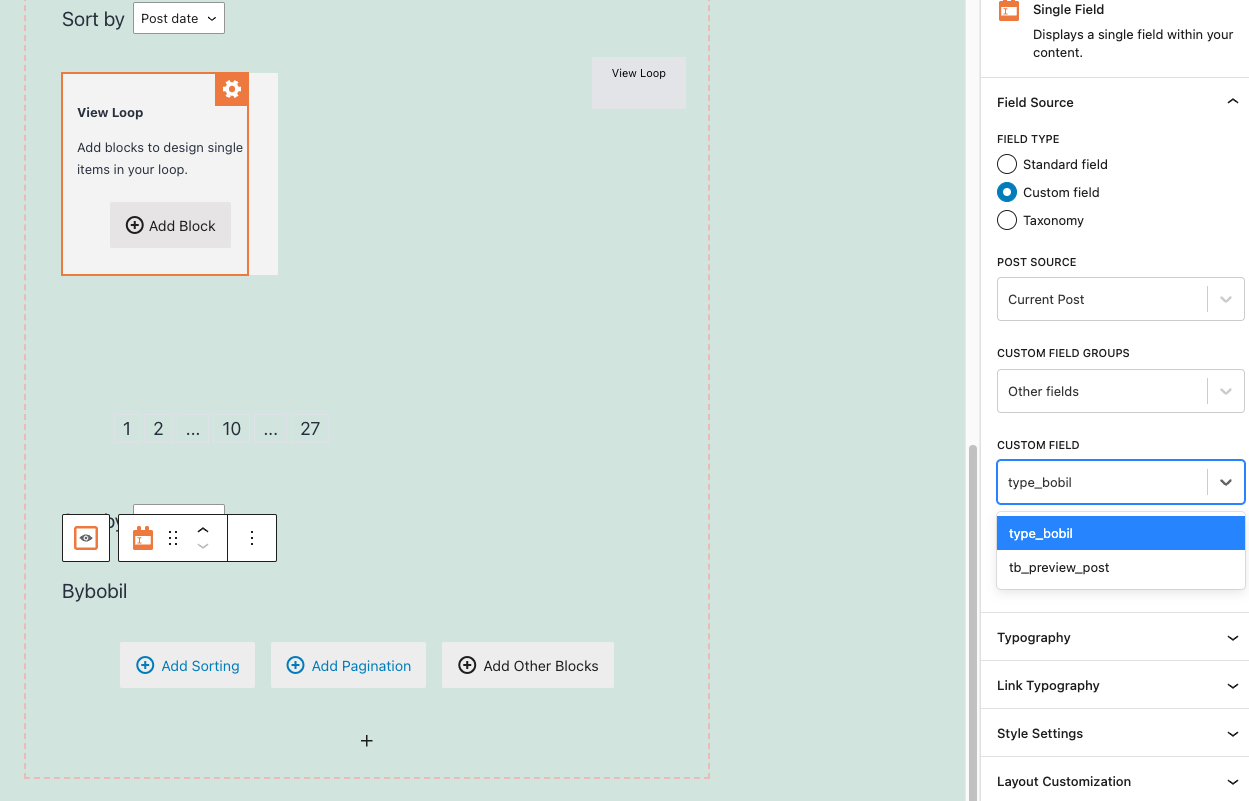
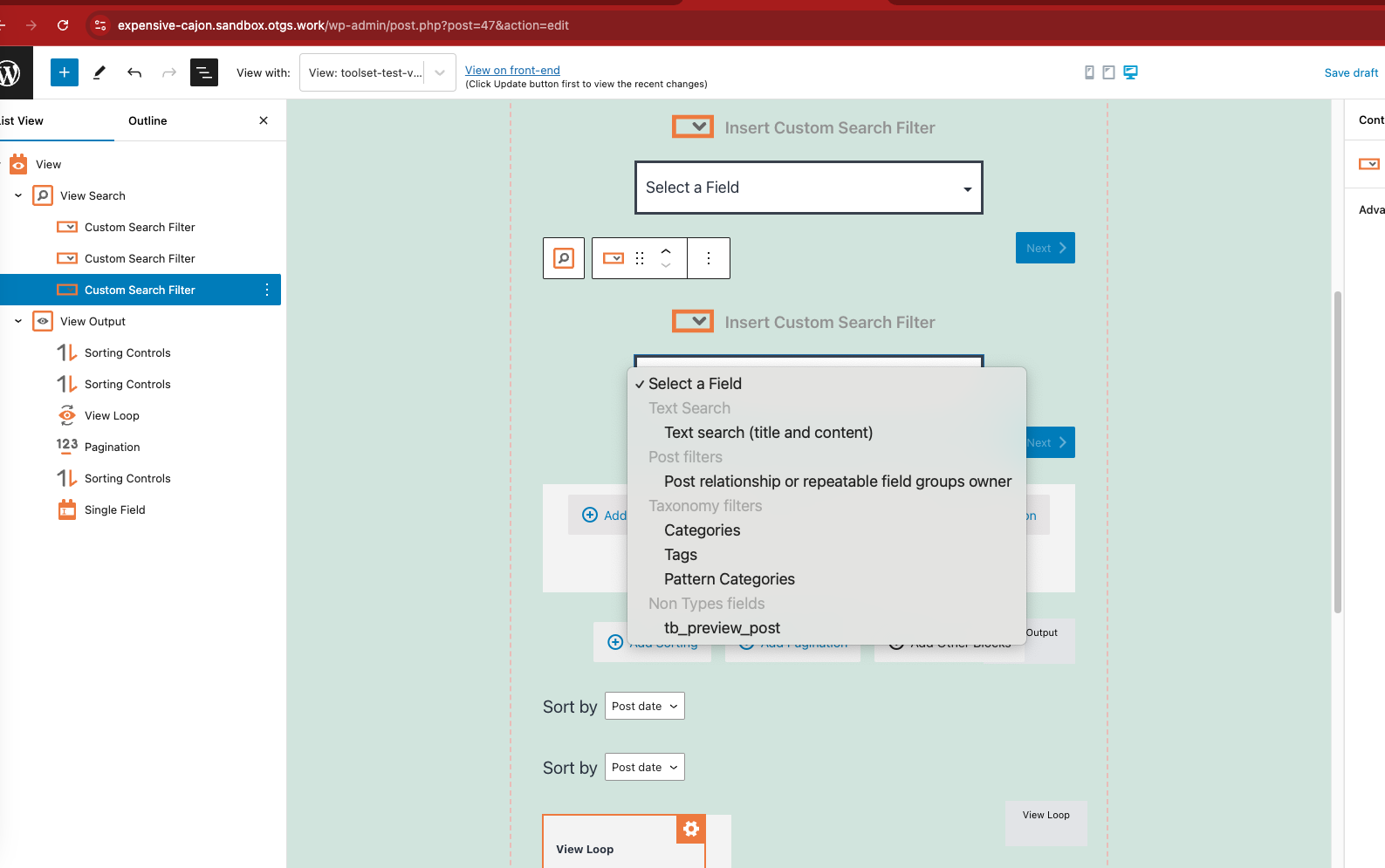
Even in the sandbox I cant add it as a search field under content templates?
With such customizations - you will have to either use classic view as I shared:
- hidden link
If you still wants to use Toolset Blocks then you will have to add the shortcode block and add the filter code as given under:
=> hidden link
<div class="form-group">
	<label for="wpv-type_bobil">[wpml-string context="wpv-views"]type_bobil[/wpml-string]</label>
	[wpv-control-postmeta field="type_bobil" type="select" default_label="Please Select" url_param="wpv-type_bobil"]
</div>
I suggest you should go with legacy views:
- https://toolset.com/documentation/legacy-features/views-plugin/


