Login pages usually include a link to the “Lost password” page, where users can enter their email and request a password reset. You can create and design these pages with Toolset.
First, you need to create two pages:
- “Lost password » page will include a field to submit an email address
- “Reset password » will have a form to enter the new password
Set up the “Lost password » page
- Edit the “Lost password » page you created.
- Insert the Field and text block.
- Inside the block, click Add Field or View button.
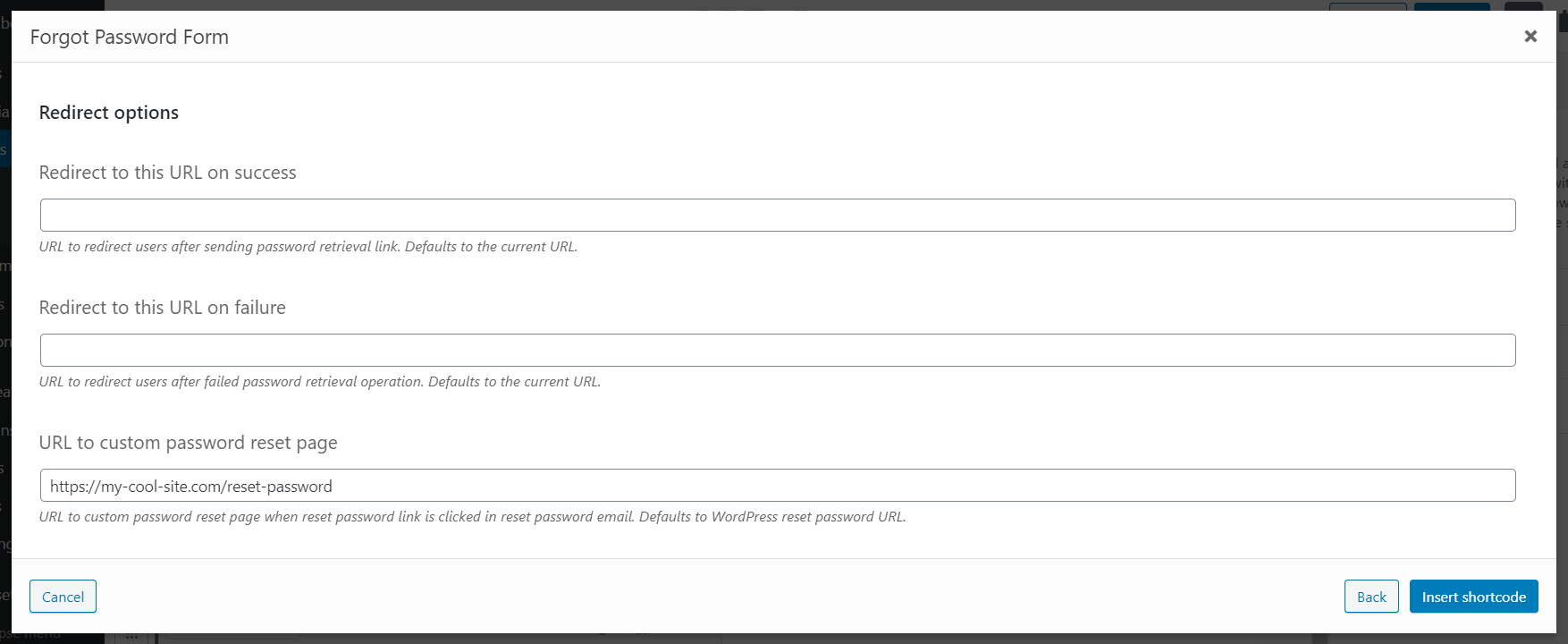
- Click Forgot Password Form and enter the URL of your “Reset password » page.
Create the “Reset password »
- Edit the “Reset password » page you created.
- Add the Field and text block to your template.
- Inside the block, click Add Field or View button.
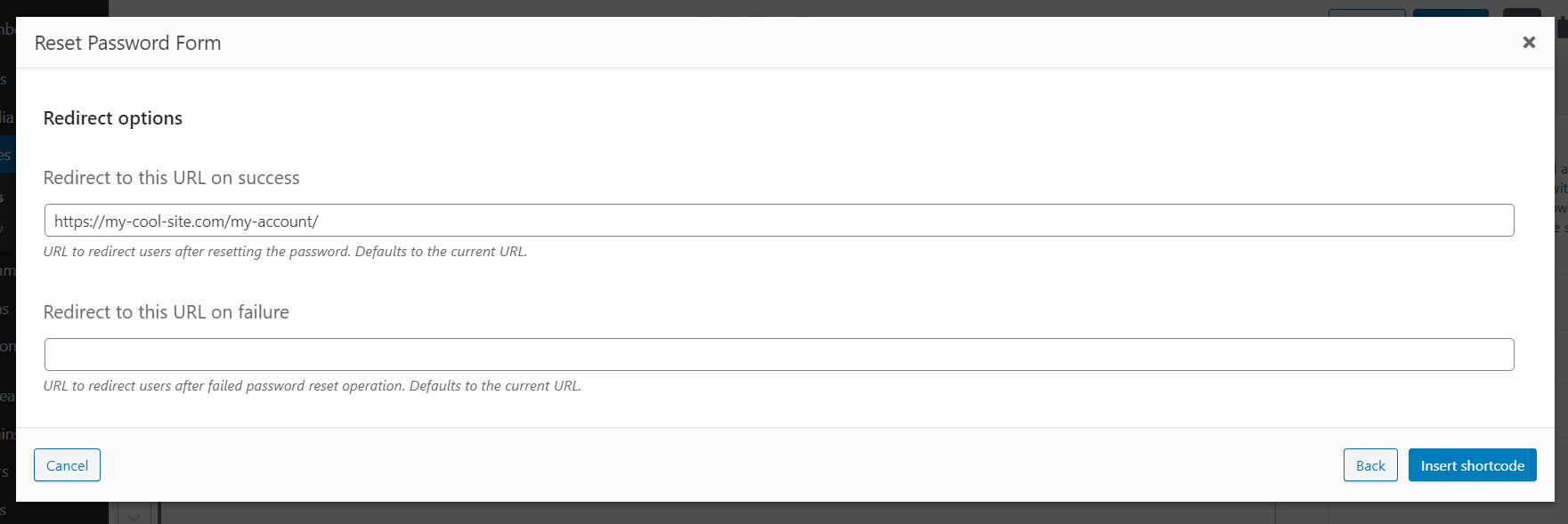
- Click Reset Password Form and enter the URL of the page where you want visitors to go after submitting. For example, this can be a “My Account » or “Login » page.
Insert the link to the “Lost password » page
Now that both pages are set up, all you need to do is add links to the “Lost password » page.
Usually, you want to provide this link to users on the “My Account » and “Login » pages.
Main Toolset Block Used in this Lesson

Affichez des champs personnalisables et par défaut
Need help?
If you bought Toolset, log-in to your account and post your questions in Toolset technical support.
Not a client yet? Find the account that’s best for you.

 Envoyer des commentaires à notre équipe de documentation