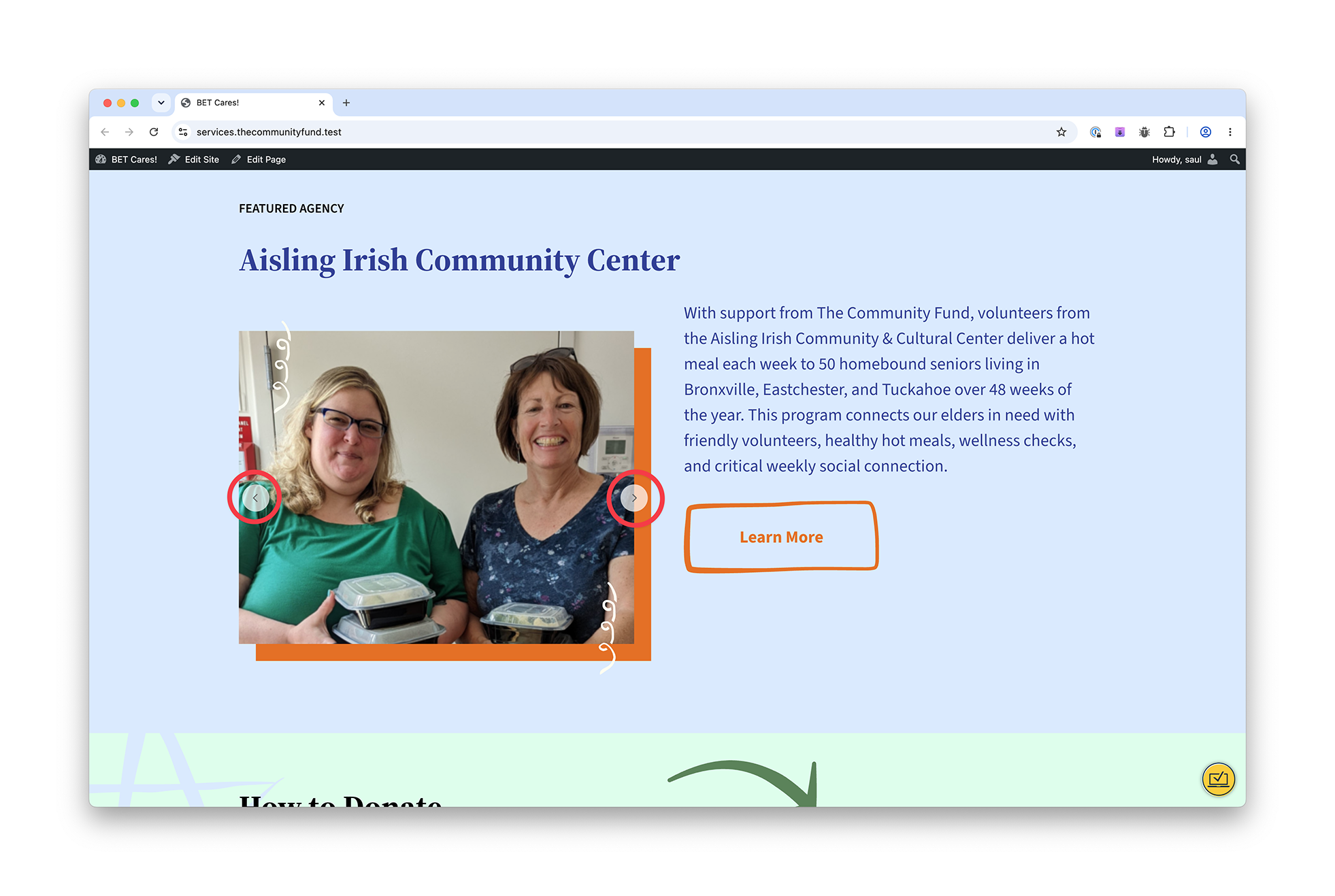
We have a custom Image field that can accommodate multiple instances (values).
A view displays the imagery in a slideshow. The question: when we have only a single image, is it possible to hide the navigation arrows (as seen in the attached screenshot circled in red)?
Hello. Thank you for contacting the Toolset support.
Yes - it could be possible but it may require custom JS.
Can you please share problem URL where I can see the issue as well as admin access details.
*** Please make a FULL BACKUP of your database and website.***
I would also eventually need to request temporary access (WP-Admin and FTP) to your site. Preferably to a test site where the problem has been replicated if possible in order to be of better help and check if some configurations might need to be changed.
I have set the next reply to private which means only you and I have access to it.
I need a bit more inforamtion here. I checked the custom field structure where you have a custom field "homepage-slidesho" and you also have checkbox "show-on-homepage".
I would like to know at a time only one agency post will have "show-on-homepage" or you will have multiple "show-on-homepage" agency posts?
Regarding which Agencies appear on the homepage, multiple Agency posts may have the "show on homepage" checkbox ticked, but when the homepage loads, custom code randomly selects just one of the posts, therefore only one Agency post will ever display on the homepage.
The code is located in wp-content/plugins/bet-cares-plugin/src/block_variations.php. I had forgotten it was using block bindings. The method you're interested in is filter_homepage_featured_agency_slideshow() on line 418. The slideshow code is using a view named "view-of-homepage-featured-agency-slideshow."
If you need to install a file browser plugin like File Manager (https://wordpress.org/plugins/wp-file-manager/), you have my permission. This is a copy of my production site, and you can do whatever you like to it.
The answer is that I'm using block bindings to connect multiple pieces of content to a WordPress block, the Cover block. Basically, I wanted the Agency name, Agency excerpt, Agency URL, and Agency slideshow to be displayed in the Cover block. It seems a bit insane, but I created it for another project and it was easy to adapt here.
I suppose it's dawning on me that I could have just used a View and created the layout using the Cover block in the block editor. Is that what you're getting at?
Yes - what I suggest is simple create a view order by random order and display 1 post only. If you do not want to do that please let me know and I will provide you further guidance.
Thanks to your sage advice, I replaced a bunch of PHP with a new view that randomly selects an Agency. Nice! (Note that only one Agency post has the special checkbox "Show on Homepage" checked, so the same Agency post gets randomly selected each time.) The new view is named "View of Homepage Random Featured Agency." It references a child view which displays the gallery slider, "View of Homepage Featured Agency Slideshow."
What's the next step to hide the navigation arrows?
You do not need to nest the view as its not needed.
You can use the following top level view only "View of Homepage Random Featured Agency":
=> lien caché
I've added the following line of code to hide the navigation with "Loop Editor" section's CSS box:
.glide__arrows { display:none; }
You can adjust the loop output as required - see the result. You may add grid block and divide the display slider in left column and in right column you can display whatever you want and adjust it accordingly.
- lien caché
Thank you for taking a look at the view. I think I *do* need the two different views since the other related information—Agency name, link, and brief description—got removed! And that's OK, it's just a test site. 🙂
As for the CSS, thank you for providing it. Is it correct that the navigation arrows are now removed regardless of the number of images in the slideshow? What I'm trying to accomplish is to remove the arrows only when there is a single image in the Homepage Slideshow field, because navigation isn't needed then. Does that make sense? Side question: can I use views shortcodes (https://toolset.com/documentation/programmer-reference/views/views-shortcodes/) in the CSS editor box?
You do not need second view. Please check the following:
- lien caché
This is the view's template and I've added the grid block and set the grid to display two columns and you can display whatever you want accordingly. With left column I've added slider and in right column I've added the post link.
- lien caché
Ah, I see what you mean now! I can replace the nested view with the "Image Slider" Toolset block. Cool!
Some questions for you:
+ Regarding the CSS to hide the navigation arrows, is it correct that the navigation arrows are now removed regardless of the number of images in the slideshow? What I'm trying to accomplish is to remove the arrows only when there is a single image in the Homepage Slideshow field.