I am trying to: Add a View to a page
Link to a page where the issue can be seen: enlace oculto
I expected to see: A colour differnence between font and backgorund to make text readable
Instead, I got: see text page and screenshots
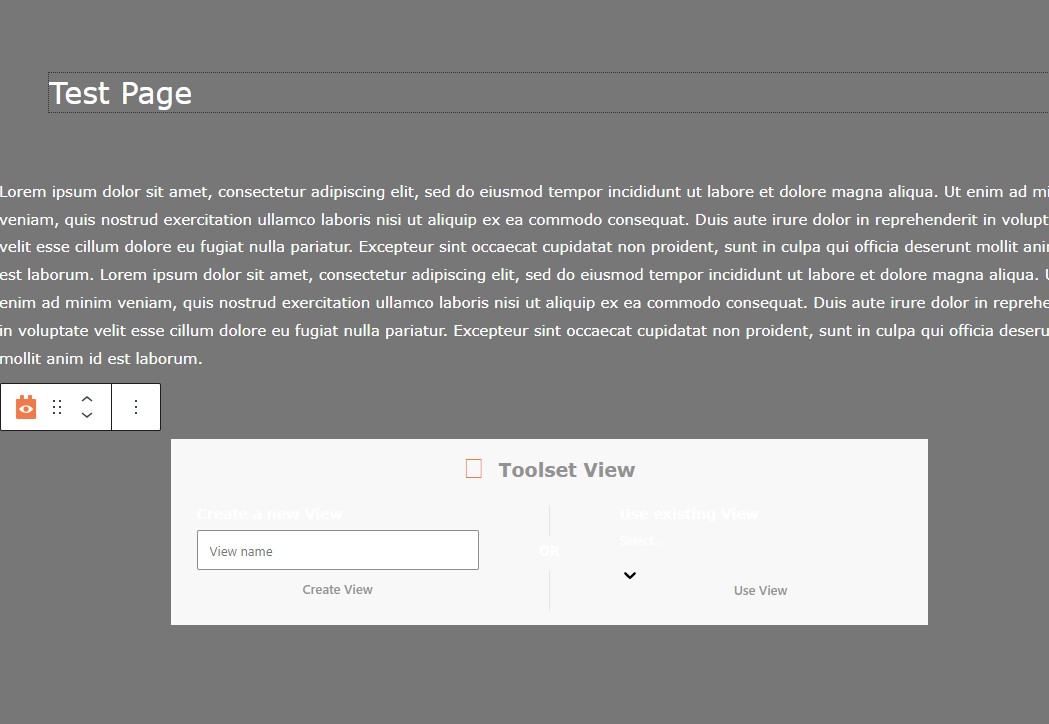
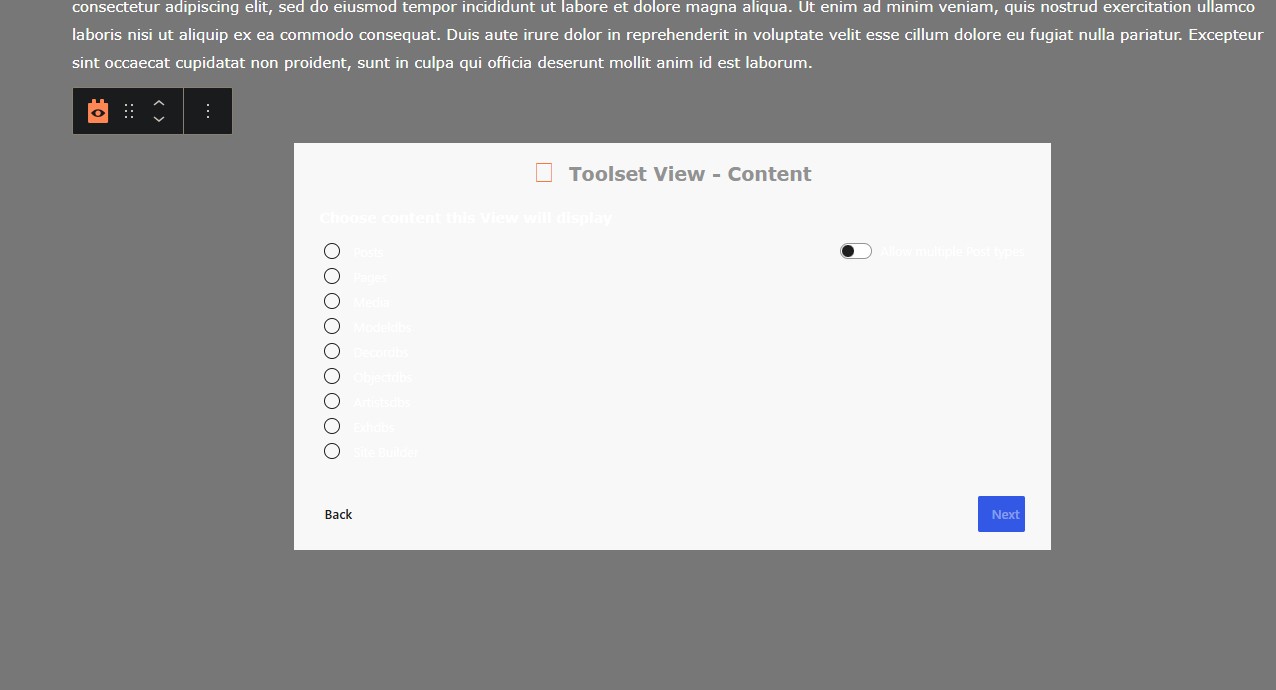
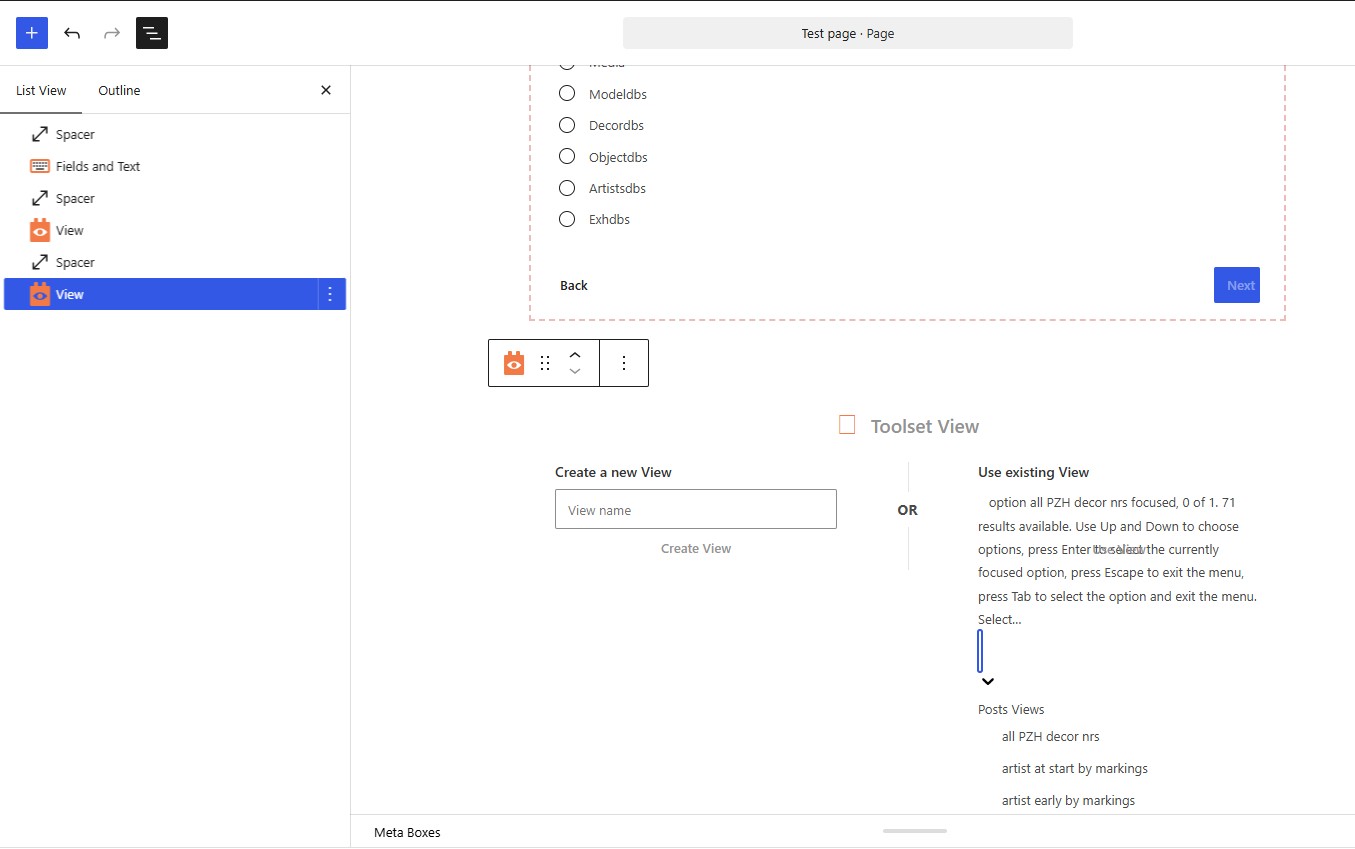
I ran into a problem with the readability of the Toolset View and Toolset View – Content pages and Toolset View – Design (and perhaps there are others) were since recent the white font is written over a white background. My website runs WP 7.1 and theme Astra Pro 4.13.8.
I have tried a few fixes:
- Deactivated all plugins except Toolset: no change
- Changed the body text color in my them to black (normally white): no change
- Removed the Dark Reader plug in in Chrome ( I used this sometimes as some of the TS interfaces were otherwise not readable) This was mentioned by AI as a possible cause of the whit on white issue, but it made no change
- Added the following code at the bottom of the functions.php file for my Astra Theme as recommended by AI:
add_action('admin_head', 'fix_toolset_modal_text_color'); function fix_toolset_modal_text_color() { echo '<style> /* Force dark text color inside Toolset Views popup modals */ .toolset-shortcode-gui-dialog, .wp-dialog, [class*="toolset-"] .modal-body, [class*="toolset-"] label, [class*="toolset-"] span { color: #333333 !important; } /* Fix background contrast if necessary */ .ui-dialog .ui-dialog-content { background-color: #ffffff !important; } </style>'; }
Which after restarting WP again did not solve the issue.
Any ideas how this can be resolved???
Hi,
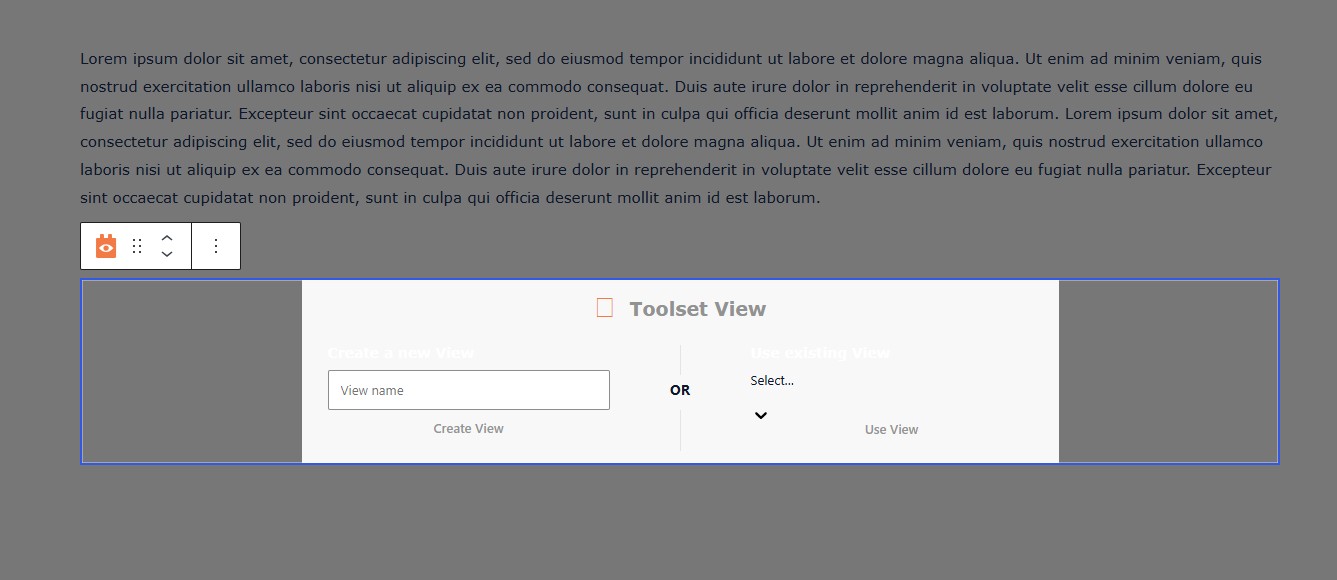
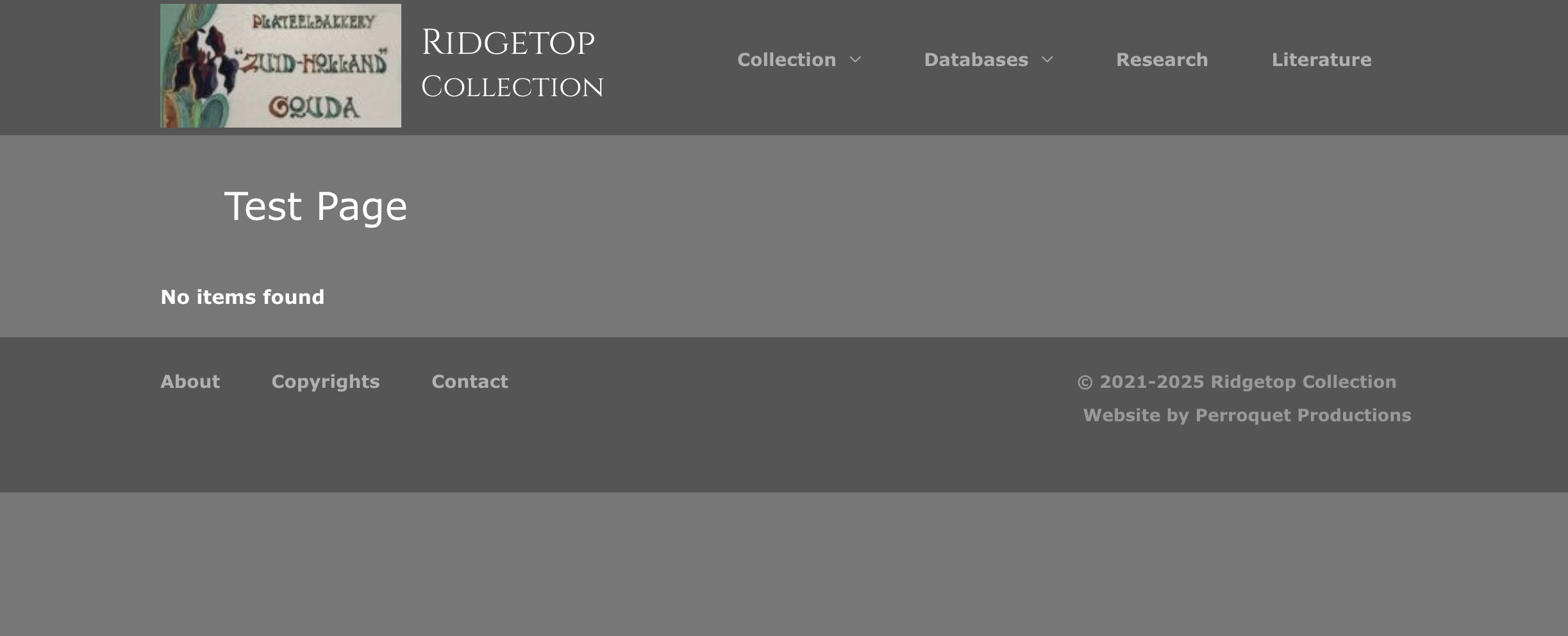
Welcome to Toolset Support. I checked the website, but I could not find any Views. I have attached a screenshot showing what I see.
In general, Toolset Views do not apply any styling by default. They inherit the styling applied by the theme.
You can test this by temporarily switching to another theme and checking whether the text becomes readable.
If you provide access to a front-end page containing the View, I can inspect it in my browser and recommend what to change and which CSS code to add.
Thanks.
Hi Christopher,
Apologies, I had not realised you would not see it when you are not logged in as admin to my site, as the problem is only visible when the page is opened in edit mode. Please send me a request to send you the login information and you can open the test page in edit mode and hopefully see the problem as I see it.
I have not changed the styling of the Astra theme in a long time, and the problem of white text on white background occured out of nowhere. I just did a test with theme OceanWP and it does present the Toolset View and Toolset View Content pop ups (combined on one page in attached screenshot) in black font on white background. But I do not want to change away from Astra as it gives me all the functionality I need and would mean a lot of work .
So is there a way to get the correct display of these two pages back as black font on white background in the Astra them (for a non programmer;) )?
My thanks in advance,
Rudolph
By the way: The new way of showing the pick list of Existing Views is an improvement !!
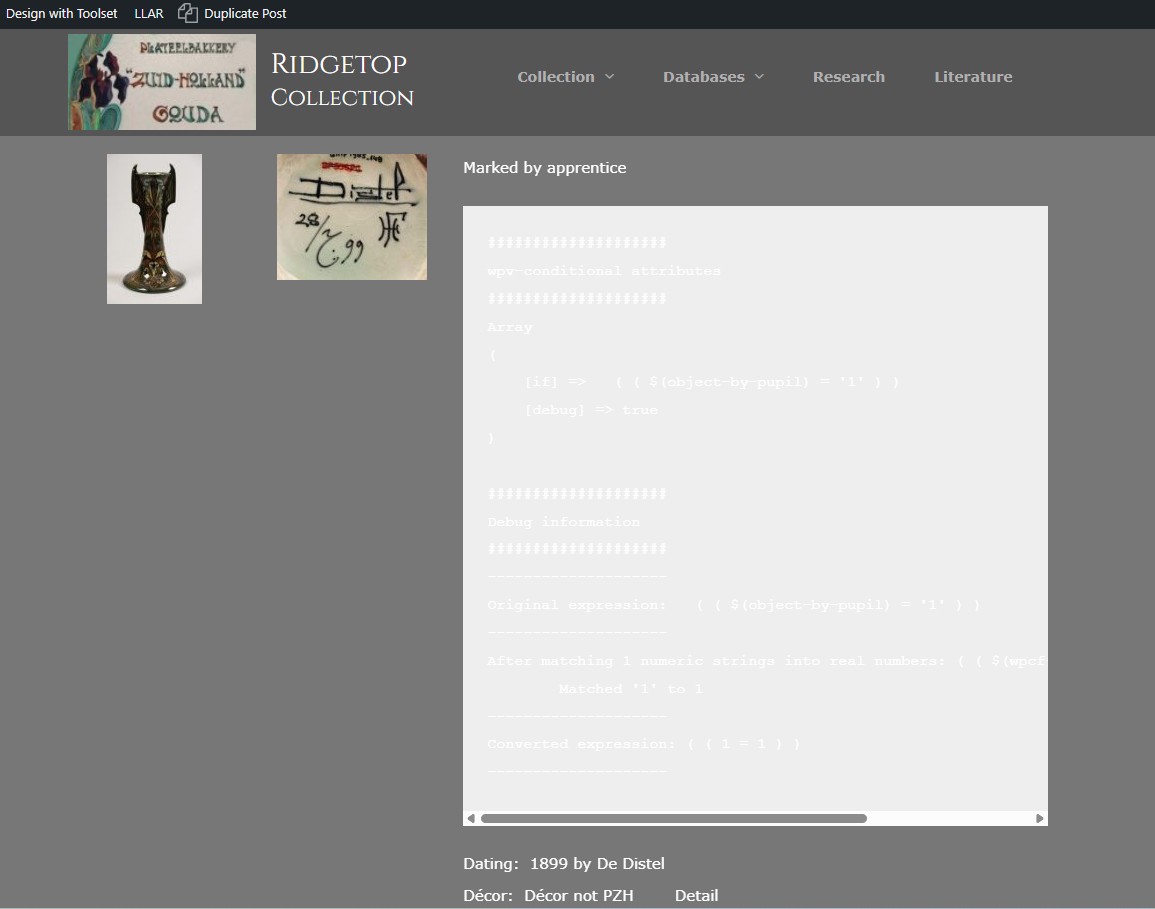
I noticed the same problem in the Conditional debug mode, see screenshot
Thank you Rudolph. You can set the next reply as private to provide the login information. I am going to check.
Please aso give me the exact URL that you took the screenshots so I can check.
Thanks.
Hi Rudolph,
Since you want it to display correctly in the Block Editor, this requires PHP code. I went to "Toolset > Settings > Custom Code" and added a new file called "admin-style." I added the following code there:
add_filter( 'block_editor_settings_all', function ( $settings ) {
    $settings['styles'][] = array(
        'css' => '
            .wp-block-toolset-view-placeholder {
                background-color: #777;
            }
        ',
    );

    return $settings;
}, 10, 2 );
The code above adds the CSS needed to change the background color to #777.
Thanks.
That works like a dream, also for the Conditional debug mode! Any idea WHY this suddenly happend after 6 years of using Toolset ? 😉
BIG thanks for the fix, this is not something I could have solve by myself
Rudolph