Saltar navegación

[Resuelto] columns in checkout resized by Toolset types css

Este hilo está resuelto. Aquí tiene una descripción del problema y la solución.

Problem:

The WooCommerce checkout form columns were displaying too narrow (about 8%) because Toolset’s Bootstrap CSS was overriding the layout styling, even though Toolset Views weren’t used on that page.

Solution:

Disabled Toolset’s Bootstrap CSS loading by going to Toolset → Settings → Bootstrap loading and selecting “The theme or another plugin is already loading Bootstrap (do not load it again)”. This resolved the checkout layout issue.

This is the technical support forum for Toolset - a suite of plugins for developing WordPress sites without writing PHP.

Everyone can read this forum, but only Toolset clients can post in it. Toolset support works 6 days per week, 19 hours per day.

Este tema contiene 1 respuesta, tiene 1 mensaje.

Última actualización por graceannA 7 months, 2 weeks ago.

Asistido por: Christopher Amirian.

Autor
Mensajes
#2830585
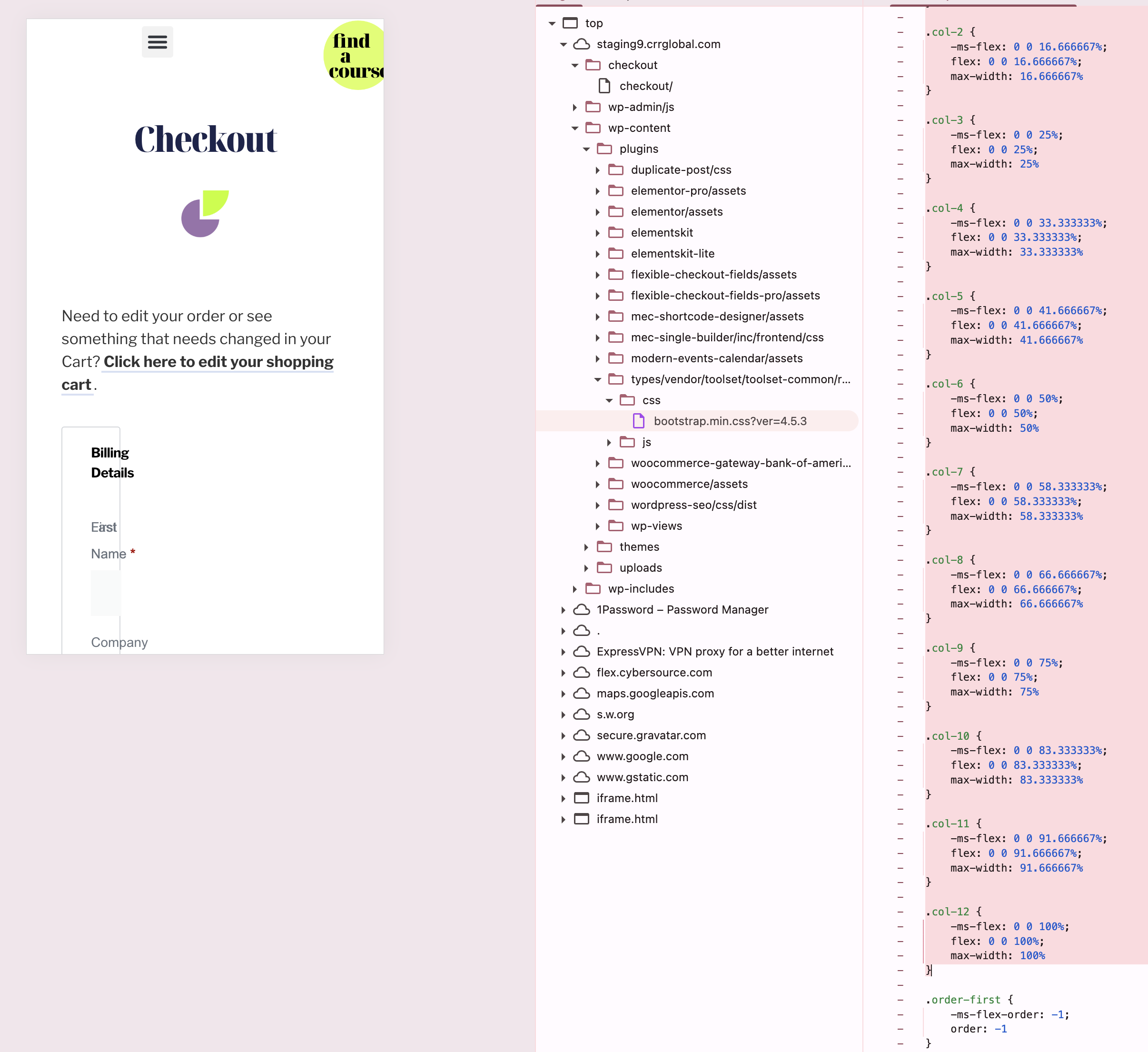
drilling down to css affecting this area.jpg
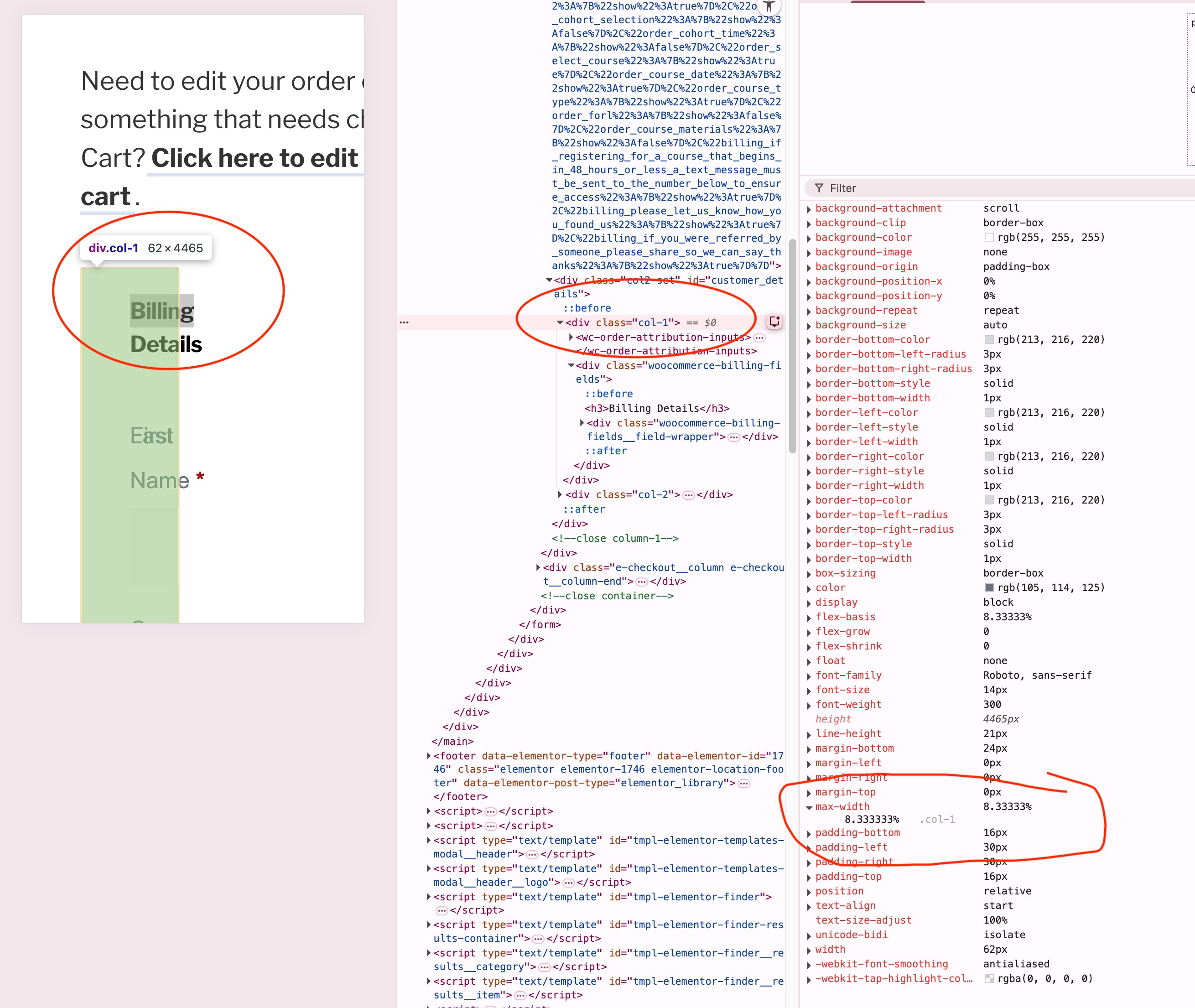
Toolset css causing checkout form to be 8%.png
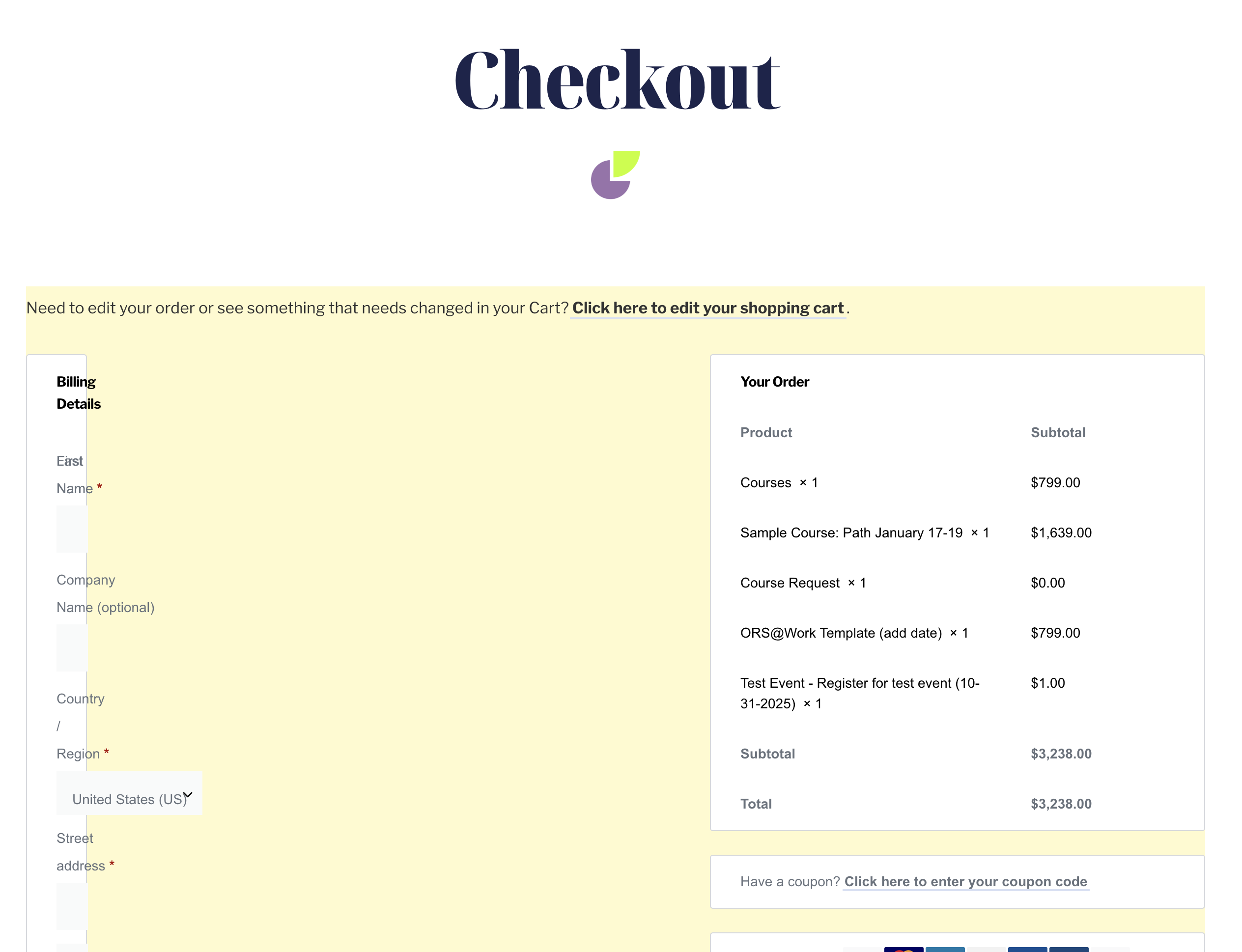
example of checkout.png

I am trying to: set up our checkout form using the WooCommerce widget in Elementor on our staging site.

Link to a page where the issue can be seen: enlace oculto

I expected to see: A checkout form with two columns, but the columns on the left side are both too narrow. On inspection of the code, the columns appear to be set to 8.3333% by css in the toolset plugin. I'm not sure why this is affecting the form because I don't think I'm using a toolset view here, but it appears that the toolset css is overriding the WooCommerce css?

Thanks for your help.

#2830828

Christopher Amirian
Colaborador

Idiomas: Inglés (English )

Hi,

Welcome to Toolset support. Toolset uses the Bootstrap library to manage the CSS and styling of the Views generation. The CSS you mentioned is part of that library.

If you want, you can turn that off, but then you will be responsible for the styling of the content generated in the views or content templates.

From your WordPress dashboard, navigate to:
Toolset → Settings → General
Scroll down until you find the “Bootstrap loading” option.
It’s under the “Front-end Content” or “General Settings” tab (depending on your Toolset version).
You’ll see three options:
Toolset should load Bootstrap 3
Toolset should load Bootstrap 4
The theme or another plugin is already loading Bootstrap (do not load it again)

Select the third option:

“The theme or another plugin is already loading Bootstrap”
(In newer versions it may read: “Do not load any Bootstrap files”)

Click Save at the bottom of the page.

Alternatively, you can add a CSS code for that specific page to override the Bootstrap CSS.

Thanks.

#2831666

Thank you, this worked to solve the problem.